Embedded Package Management Without Rebuilding Firmware

Major Update: Aiden Firmware now delivers embedded package management through OPKG and Entware, letting you add compatible tools at runtime instead of rebuilding firmware for every new command.

Aiden merged PR #478 to add an optional runtime package layer backed by persistent /opt storage. The practical takeaway is simple: install tools when needed, not at build time.

Need curl to test an endpoint, jq to inspect JSON, or tmux for a longer debugging session? Previously, a missing utility could mean changing Buildroot configuration, rebuilding an image, deploying it to the device, and retesting. Aiden estimates that cycle can take 30 minutes or more for a small tool addition. With runtime installation, the same task can take roughly two minutes under suitable network, storage, and compatibility conditions.
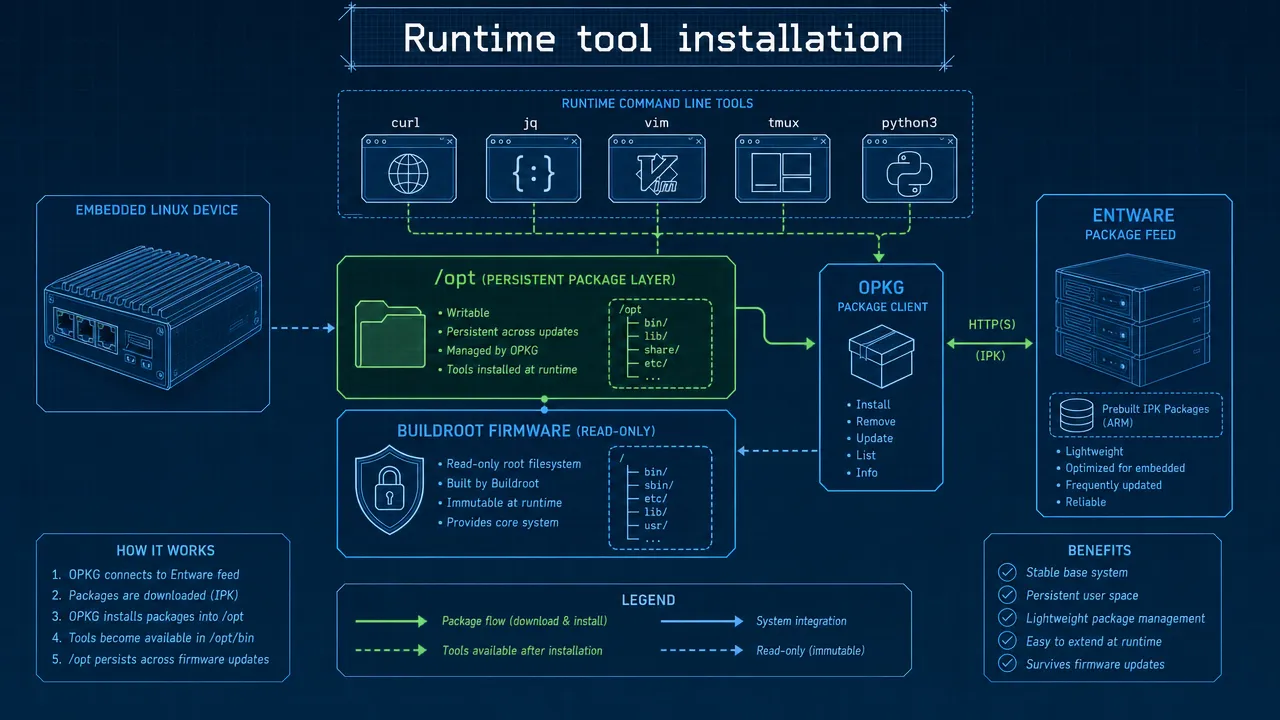
Runtime tool installation

Eliminating the firmware rebuild loop

Traditional embedded Linux images are deliberately minimal. That is useful for reliability, boot performance, and predictable storage use. However, it also means you often has to treat one additional command as a firmware change.

Buildroot remains responsible for producing Aiden’s controlled base image. It compiles and assembles the kernel, root filesystem, core services, and the on-device agent runtime at build time. That workflow is still the right choice for required system components and production-critical dependencies.

Embedded package management adds a second, more flexible layer for optional tools.

Task Previous workflow Runtime workflow after PR #478
Test an API endpoint Add a transfer tool to Buildroot, rebuild, deploy, test Install a compatible tool when needed
Inspect structured output Add a JSON utility to the firmware image Install a supported JSON processor in /opt
Diagnose connectivity Plan network utilities into the next firmware build Add approved diagnostics for a controlled session
Prototype an agent capability Rebuild for every new command dependency Add an approved command capability at runtime

The time savings are about more than speed. You can test an idea while the context is fresh instead of waiting for a full build and flash cycle. Rebuild timing varies by host machine, cache state, image size, deployment method, and test scope, so Aiden’s 30 minute versus two minute estimate should be treated as a practical illustration rather than a universal benchmark.

flowchart LR

How it fits Buildroot, OPKG, and Entware

Embedded package management does not replace Buildroot. It complements it.

Aiden Firmware runs Buildroot Linux on the current Aiden development board. Buildroot provides the stable base image. OPKG is the lightweight package-management client used to refresh package metadata, install packages, and remove packages. Entware is the embedded-focused package repository ecosystem that provides OPKG-compatible packages.

In this model, optional package files are installed under /opt, which Aiden reports as persistent storage. That keeps optional developer tooling logically separate from the core firmware image.
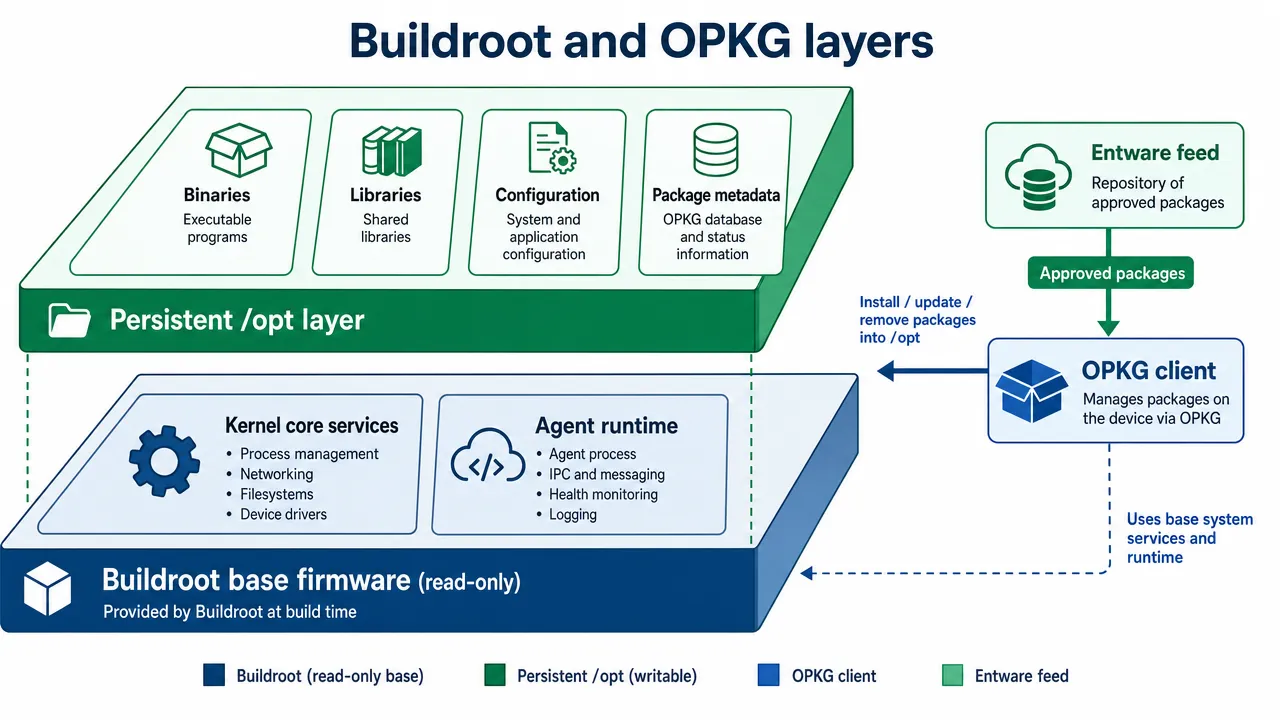
Buildroot and OPKG layers

Layer Role Why it matters
Buildroot Builds the base Aiden firmware image Keeps essential dependencies controlled and reproducible
OPKG Installs and removes runtime packages Adds a lightweight workflow for optional tools
Entware Supplies architecture-specific package feeds Provides the package ecosystem used by OPKG
/opt Stores installed tools, libraries, and metadata Preserves the optional package layer across reboot, subject to Aiden’s storage behavior

Generic OPKG syntax typically follows this pattern:

  • opkg update
  • opkg install package-name
  • opkg remove package-name

These are generic OPKG examples, not Aiden-specific setup instructions. Aiden should validate the exact command path, feed configuration, package names, privileges, and environment variables for each supported firmware release.

Compatibility matters. A package must match the device CPU architecture, ABI, libc expectations, dynamic-library environment, and available kernel capabilities. A package that works on another embedded Linux device is not automatically compatible with Aiden.

What you can add at runtime

PR #478 opens a practical path for adding approved tools when a development or troubleshooting task calls for them. The following package examples are illustrative and require validation against the Aiden-configured Entware feed.

Category Example tools Practical use
HTTP and API testing curl, wget Test approved endpoints and inspect responses
JSON and text processing jq, grep, sed, awk Filter diagnostics and extract fields from JSON
Terminal workflow vim, tmux Edit during prototyping and manage longer shell sessions
Network diagnostics netcat, DNS tools, tcpdump Investigate authorized connectivity issues
Scripting and automation python3, shell utilities Run reviewed diagnostic or transformation scripts
System debugging strace, process tools Inspect runtime behavior where system support permits

For you, this flexibility connects directly to the agent runtime. Aiden captures a connected device display through HDMI and controls the target through USB HID. The Aiden agent can use runtime tools to support controlled development work, such as checking an approved health endpoint, parsing structured local output, or collecting a bounded diagnostic bundle.

That does not mean agents should install arbitrary packages without oversight. An AI agent that can add shell commands expands its capabilities, but it also expands the executable surface of the device. Treat package installation as a policy-controlled tool call.

Recommended controls include:

  1. Allowlist approved package names and versions.
  2. Require human approval for installs, upgrades, removals, and service activation.
  3. Restrict package-management privileges separately from routine agent execution.
  4. Record the package name, version, source feed, timestamp, initiating actor, and result.
  5. Set /opt storage budgets before installation.
  6. Block arbitrary package URLs and local package files by default.

Limits in real deployments

Runtime packages improve developer velocity, but they do not remove the need for disciplined embedded operations. The best approach is usually hybrid: keep core capabilities in the firmware image and use runtime installation for approved optional tools.
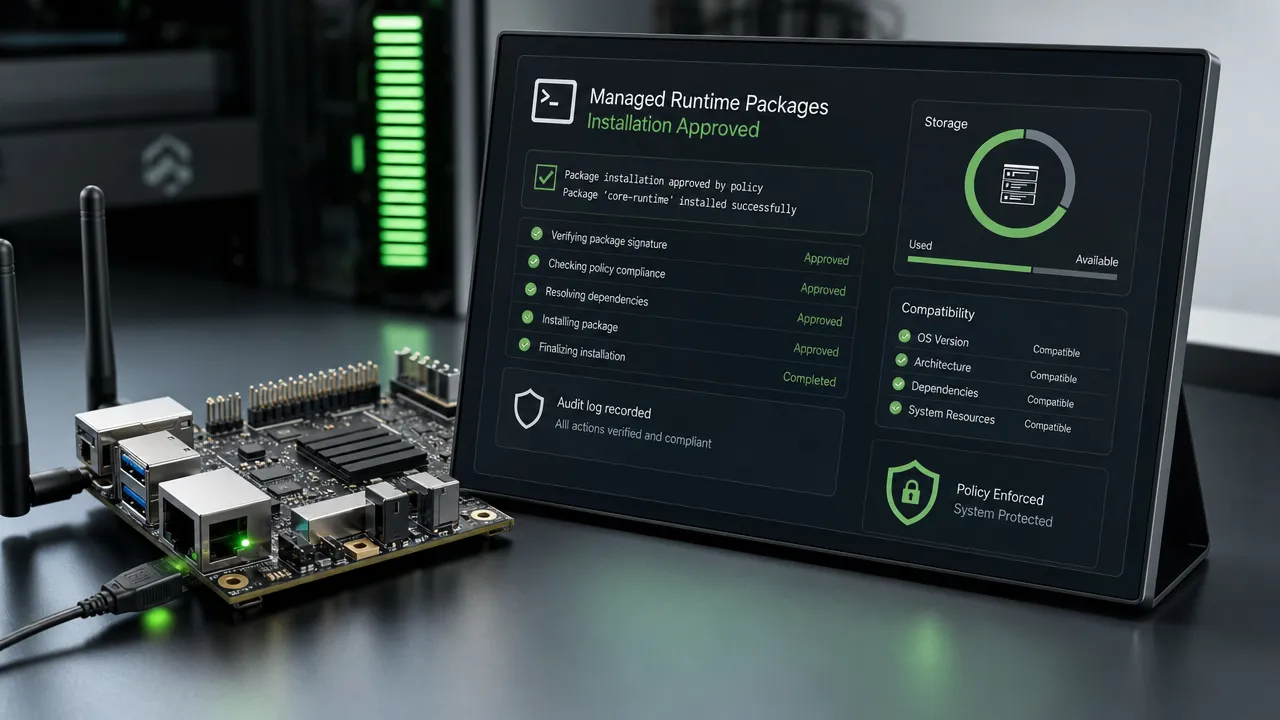
Managed runtime packages

Constraint Why it matters Practical response
Storage space Dependencies, indexes, and caches can fill constrained storage quickly Check free space and set a quota for /opt
Memory use Interpreters and diagnostics can compete with the agent runtime Test tools under realistic workload and avoid heavy defaults
Feed availability Installation requires access to a trusted package source Use approved mirrors or staged packages for offline work
Version drift Two devices can share firmware but differ in runtime state Maintain a package manifest with pinned versions
Kernel support Some tools require capabilities not present in the base image Publish and test a supported-tool matrix
Persistence scope Persistent may mean reboot persistence, not upgrade or reset persistence Confirm behavior across reboot, update, rollback, and reset
Supply-chain risk Runtime software adds packages and dependencies after deployment Restrict feeds, validate integrity, and maintain an inventory

For production fleets, runtime packages need the same governance as firmware dependencies. Pin versions, retain approved package artifacts, track installed versions, define a rollback procedure, and audit every change. Aiden’s open-source firmware gives you a practical place to inspect and follow implementation progress through the Aiden Firmware repository.## Why a hybrid model fits Aiden

Embedded package management gives you a faster way to experiment without turning every missing utility into a firmware release. It preserves the reason Buildroot exists in the first place: a compact, controlled base image for the Aiden firmware and on-device agent runtime.

Use Buildroot when a dependency is essential, security-sensitive, always required, or needed offline. Use runtime packages when a compatible, approved diagnostic or development tool is needed for a specific task. Promote tools that become standard requirements into a versioned firmware build or an approved runtime package profile.

Whether you work on makers projects, embedded targets, or edge deployments, the result is a better development loop:

  • Add curl when endpoint testing requires it.
  • Add jq when a JSON response needs inspection.
  • Add terminal and debugging tools when an investigation calls for them.
  • Add controlled command capabilities when an Aiden agent skill genuinely needs them.
  • Keep the core image stable while optional tooling evolves.

Try it on your Aiden device: start with one approved package, confirm storage and compatibility, record the installed version, and keep the tool only as long as it serves the task. That is the practical value of embedded package management: install tools when needed, not at build time.
Unified Device Control Across iPhone, Android, and Desktop

Major Update: Aiden merged PR #471 and PR #472, introducing unified device-type configuration for cross-platform device control.

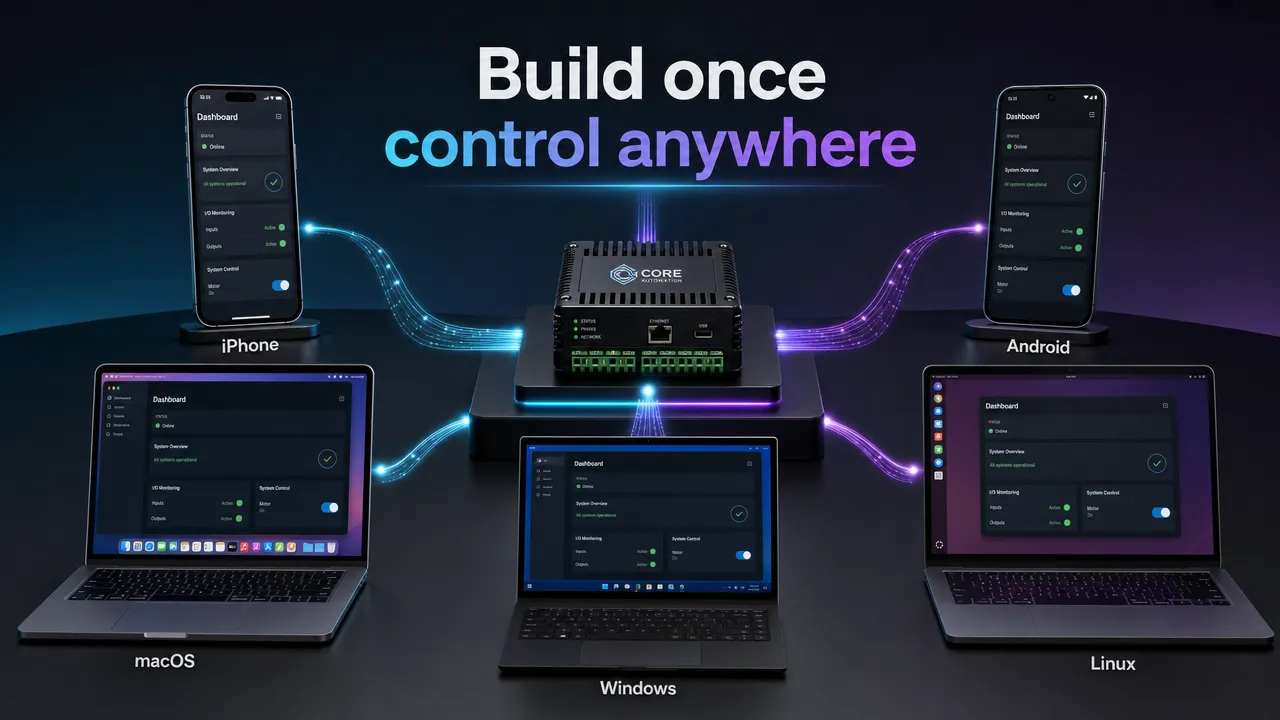
The goal is straightforward: build once, control anywhere. Configure a target device type once, then let Aiden adapt supported shortcuts, text input, pointer behavior, and navigation for iPhone, Android, macOS, Windows, or Linux.

This is a project update, not a claim that every operating system behaves identically. USB HID gives Aiden a common physical input transport, but each platform still has its own interaction conventions, prerequisites, and application-level variation. The new profile layer is designed to keep those differences inside Aiden’s control stack rather than forcing you to write separate workflow logic for every target.

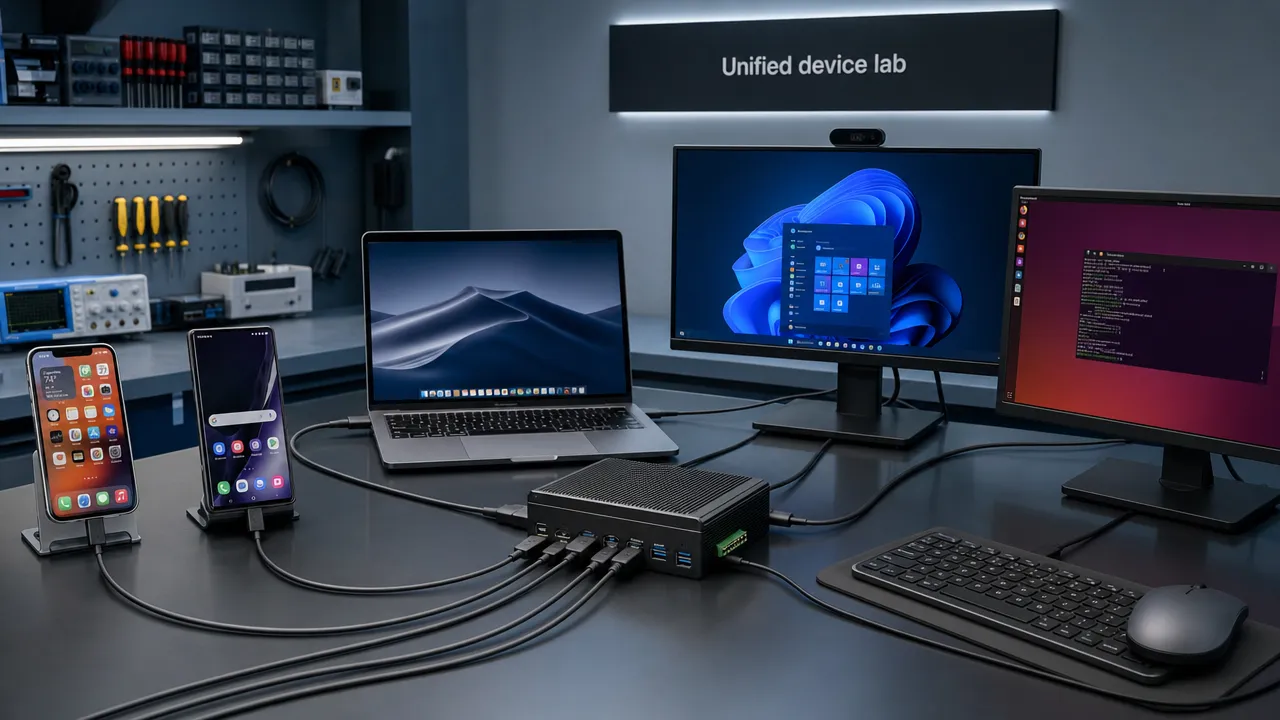
Unified device lab

Why this has traditionally meant more code

Cross-platform device control is difficult because a keyboard, pointer, or touch report is only the beginning. The target platform decides how that input is interpreted.

On macOS, common commands typically use the Command key. On Windows, common commands typically use Control. Linux often follows Control-based conventions, but behavior can vary by desktop environment, window manager, keyboard layout, and application. Android supports external keyboards, mice, and trackpads, yet touch-first app behavior and keyboard navigation can differ across devices and apps. iPhone introduces another model: external pointer use is mediated through AssistiveTouch, while keyboard navigation can depend on Full Keyboard Access.

Target Common input model Key consideration
iPhone External keyboard and assistive pointer AssistiveTouch is required for pointer control
Android Physical keyboard, mouse, and trackpad App behavior and navigation support can vary
macOS Desktop keyboard and pointer Command-based shortcut conventions
Windows Desktop keyboard and pointer Control-based shortcut conventions
Linux HID keyboard and pointer Desktop environment and application variability

A single workflow can therefore become cluttered with branches: use Command here, Control there, send a pointer action on one target, use a keyboard-navigation fallback on another.

That is the problem this update addresses. Instead of making you maintain target-specific logic in every scenario, Aiden can use a selected device profile to apply platform-aware behavior at the control layer.

What changes in Aiden

The project-provided update behind PR #471 and PR #472 introduces device-type profiles for cross-platform device control. The intended workflow is:

  1. Select the target device type.
  2. Run the same high-level Aiden workflow.
  3. Let the selected profile adapt supported input and navigation behavior.
  4. Validate the interaction on the actual target device and application.

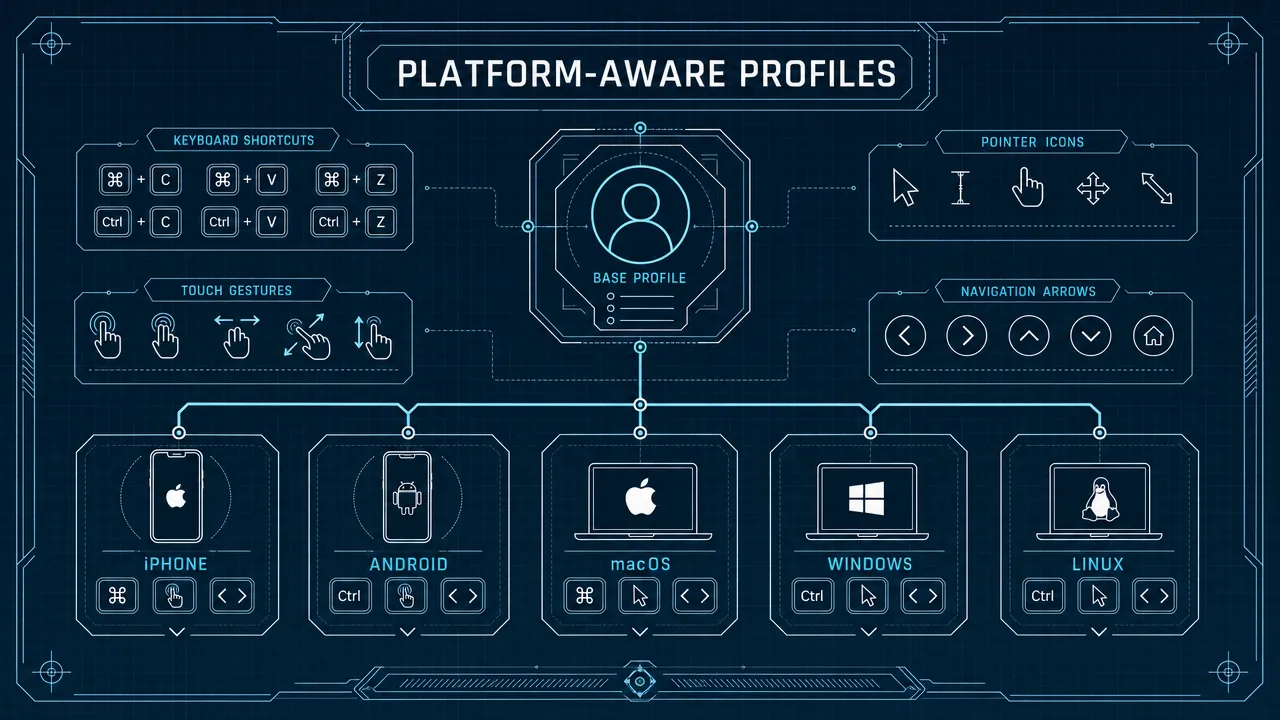
For example, a workflow can express an intent such as copy, paste, enter text, activate an element, or move back through navigation. The selected platform profile can then determine the appropriate supported input sequence.

This means you should not need to author separate Aiden control logic for standard actions on every platform where the profile supports that behavior. It does not mean platform-specific handling disappears from firmware, or that every application will respond identically.

Platform-aware profiles

Platform behavior stays where it belongs

The practical benefit is separation of concerns.

Your workflow can focus on the task:

  • Enter credentials into a focused field.
  • Open a menu.
  • Copy selected text.
  • Move to the next screen.
  • Validate that the expected UI state appears.

Aiden’s profile layer can focus on the target-specific interaction details:

  • Command versus Control shortcut mappings.
  • Text-entry and focus behavior.
  • Pointer, click, tap, and scroll handling.
  • Platform navigation patterns.
  • iPhone accessibility prerequisites.
  • Desktop-specific input expectations.

That is the meaning of "build once, control anywhere" in this release. It is a unified configuration and workflow model, not a promise of identical input semantics across all operating systems.

How it fits Aiden’s firmware stack

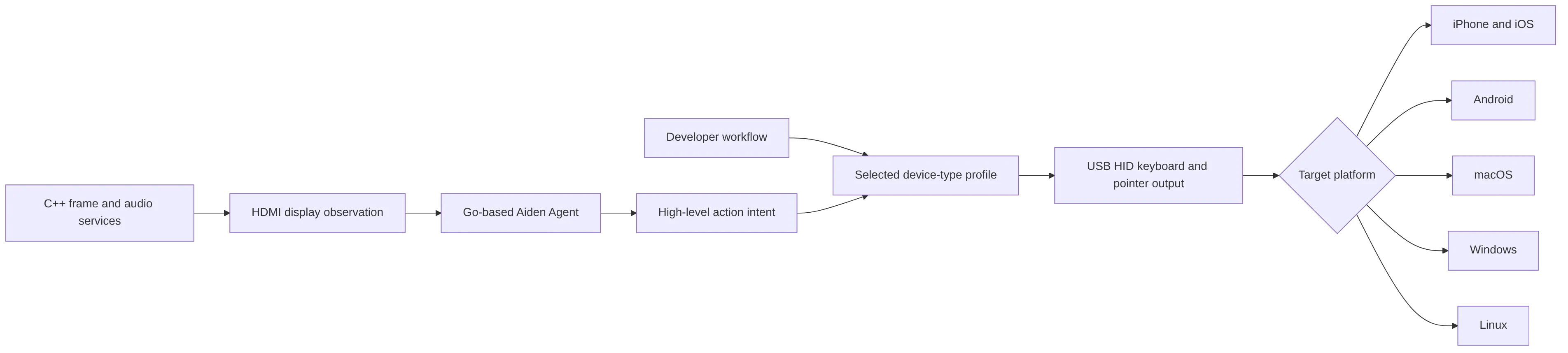
Aiden’s documented foundation combines target-screen observation with physical input control. The dev board captures the connected target display through HDMI, while a composite USB gadget exposes keyboard and pointer HID interfaces to the target. The device-side Agent runtime is Go-based, and C++ services support hardware-facing work including frame and audio processing.

USB HID is the shared transport layer. It standardizes how a connected device can represent input such as keyboard presses, mouse movement, buttons, and related controls. It does not standardize what an operating system or app does with those inputs.

flowchart LR

The profile feature reported in PR #471 and PR #472 sits between action intent and HID output. That is where Aiden can translate a supported action into behavior appropriate to the selected target.

For iPhone, this includes the important AssistiveTouch consideration. Apple documents AssistiveTouch pointer support for USB and Bluetooth assistive pointer devices, and separately documents external keyboard navigation. For Android, physical keyboard, mouse, and trackpad input are supported independently of ADB, as described in Android’s keyboard, mouse, and trackpad guidance.

Across five target families

The same Aiden device can now be configured around the target family rather than requiring a separate control implementation for each OS.

Platform Profile-aware concern Developer validation
iPhone AssistiveTouch, external keyboard navigation, pointer behavior Confirm accessibility settings and target connectivity
Android Keyboard layout, focus, pointer, scrolling, app navigation Test the specific device mode and application
macOS Command shortcuts, menus, desktop focus Confirm active-app and keyboard-layout behavior
Windows Control shortcuts, windows, context menus, focus Test security surfaces and active-window states
Linux HID support plus desktop environment differences Validate the actual distro, compositor, and desktop environment

The update is especially useful for mixed device labs. A QA team can define a high-level scenario once, select the correct target type for each station, and test the same journey across phones and desktops. Hardware you can use one physical control plane across a broader target fleet. You can keep platform-aware mapping in configuration rather than scattering conditional logic through every workflow.

Build once control anywhere

What developers can do now

With this firmware update, the immediate project-provided capability is to configure a device type once and use the same Aiden device across iPhone, Android, Mac, Windows, and Linux targets.

Strong use cases include:

  • Multi-platform QA and regression checks.
  • Mixed phone and desktop device labs.
  • Repeatable product demonstrations.
  • Embedded automation rigs using physical HID input.
  • Cross-platform validation of common interaction workflows.

Aiden’s documented architecture uses USB HID for control rather than ADB. That distinction matters: Android Debug Bridge is a separate developer communication tool, not a requirement for physical keyboard or pointer input. Likewise, Aiden’s HID-based approach does not depend on a target-device app, developer mode, or a jailbreak when the target accepts HID input and provides the required display-output path.

Before deployment, validate the real environment:

  • Confirm USB and display-capture connectivity.
  • Enable AssistiveTouch for iPhone pointer control.
  • Test keyboard layout and focused-field behavior.
  • Test target applications, not only OS-level input recognition.
  • Validate Linux behavior on the actual desktop environment.
  • Confirm shortcuts and navigation in the specific app being automated.

For more implementation context, explore the Aiden open-source kit guide and follow future updates on the Aiden blog. If you want to inspect the ongoing implementation can also visit the official Aiden firmware repository.

Where this goes next

PR #471 and PR #472 are a major step toward a cleaner device-control workflow: select the target type once, then let Aiden apply supported platform-aware behavior.

The engineering work does not stop at device detection. Reliable cross-platform device control still depends on validating operating-system versions, accessibility settings, adapters, keyboard layouts, desktop environments, and application behavior. That validation is essential because USB HID creates a common input path, while each target platform retains its own interaction model.

The value is clear: fewer branches you have to author, a more consistent configuration model, and one physical control device that can move between mobile and desktop targets.

Build once, control anywhere, then validate where it matters: on the real device, running the real workflow.

AI Agent Memory for Long-Running Device Tasks

AI agent memory is the information an agent preserves or retrieves so it can continue a task without treating every step as a fresh start. For long-running device tasks, that memory must be separated from the model’s active context, the conversation transcript, the task’s execution state and the device’s current screen.

Those distinctions matter because an agent can remember the goal and still act on the wrong interface. It can preserve a conversation and still forget which action already succeeded. It can retrieve a useful procedure and still need a fresh screenshot before using it.

Reliable continuity therefore depends on more than “giving the model more context.” The system needs the right information in the right layer—and a way to verify the external world before it resumes.

Key point: Memory can describe what the agent previously observed or attempted. It cannot prove what the device displays now.

Why Long-Running Agents Need More Than Model Context

A model context window is a bounded working area for one inference. It may contain instructions, recent messages, tool results, screenshots and retrieved memory. As a task grows, all of those items compete for the same input budget.

Simply carrying every prior event forward is not a durable strategy. Long tool outputs and repeated screenshots can crowd out the original goal. Old observations can become misleading. A conversation can remain readable to a person while no longer giving the agent a precise record of completed steps, pending approvals or external side effects.

Long-running agents need several complementary mechanisms:

  • a focused active context for the next decision;
  • a recoverable session history;
  • explicit task state for progress and approvals;
  • persistent memory for information worth reusing;
  • execution evidence for audit and later learning; and
  • fresh observation of the device before consequential actions.

The last item is essential for device-use agents. A smartphone or computer can change while the agent is waiting, compacting context, calling a tool or handing control to a person. The current screen is part of the environment, not a durable memory record.

Context vs Memory vs Task State

These terms are often used interchangeably, but they solve different problems.

LayerWhat it containsTypical lifetimeWhat it is for
Model contextInstructions and evidence included in the current model requestOne inference or active runMaking the next decision
Conversation historyUser and agent turns, tool exchanges and compressed session summariesOne active session; sometimes archived afterwardPreserving conversational continuity
Persistent memorySelected preferences, rules, facts or reusable proceduresAcross sessions until expired, changed or removedRecalling information that remains useful
Task stateGoal, completed steps, pending work, outputs, approvals and errorsThe life of a taskContinuing execution without repeating work
Device stateWhat the external interface displays and accepts nowChanges continuouslyGrounding the next device action
Recovery stateCheckpoints, artifacts, errors and continuation informationUntil recovery is complete or abandonedResuming after interruption or context loss

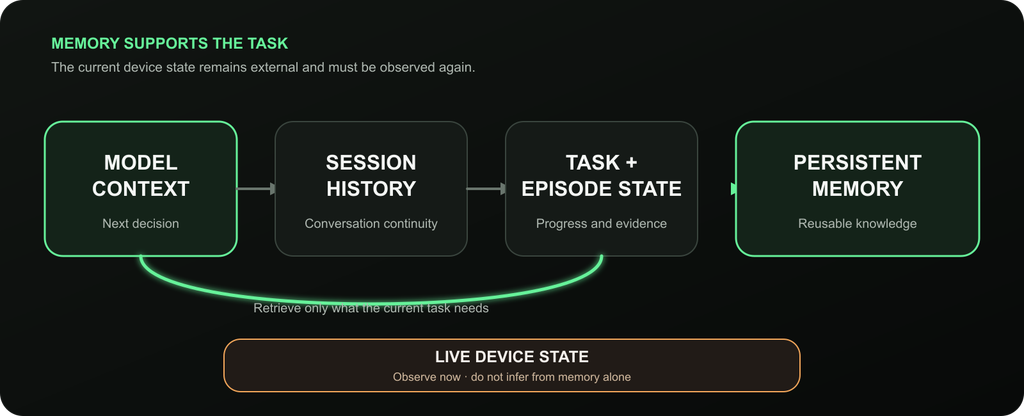
The live device remains outside the memory stack. The agent must observe it again before relying on an old screen state.

Model context is not automatically memory. Persistent storage is not automatically useful context. Task state is not the same as a user preference. Device state is not safe to infer from any of them.

Keeping the layers separate makes retrieval and recovery more precise. Instead of loading everything, the runtime can assemble the minimum evidence needed for the current decision.

What an Agent Needs to Remember

The useful memory for a long task is usually structured around continuity rather than volume.

Goal and scope

The agent needs the original objective, success condition and any boundaries the user set. Without that anchor, summarization can preserve recent activity while losing the reason for the work.

Completed steps

A record of confirmed progress helps prevent duplicate research, repeated file processing or repeated device actions. “Attempted” and “completed” should remain different states.

Current screen or last observation

The last observed screen can help explain where the task paused, but it should be timestamped or otherwise treated as historical evidence. It must not replace a fresh observation when the agent resumes.

Previous actions and results

Tool inputs, tool results, errors and external side effects help the agent determine what already happened. Large raw results may be kept as retrievable artifacts while concise findings remain in active context.

Constraints

Task-specific rules—such as allowed apps, prohibited actions, deadlines or required approval points—should remain available throughout the run.

User preferences where appropriate

Stable preferences may belong in long-term memory when the user has explicitly saved them or the product’s policy supports that use. Temporary task instructions should not silently become permanent profile data.

Failures and retries

The system should distinguish the original failure, recovery attempts and their outcomes. Otherwise an agent may repeat the same failing action or mistake a retry for new work.

Approval state

For a human-in-the-loop task, the record should show whether an action is awaiting approval, approved, rejected or superseded. An approval for one action should not be generalized to a different recipient, amount or operation.

Context Compaction

Context compaction reduces the amount of historical material carried into future model requests. It usually retains recent events, summarizes older content and preserves a path back to detailed evidence when that evidence may still matter.

Good compaction protects the original task, important decisions, unresolved questions, completed work and references to saved artifacts. It removes repetition and bulky data that does not need to remain in every request.

Compaction is lossy by design. A summary may omit a detail that later becomes important. That is why a compacted summary should not be the only copy of task evidence. The system may need retrievable chunks, artifacts, logs or episode records outside the active prompt.

It is also important to separate local compaction from provider-managed context features. A provider may shorten or chain requests, but the agent runtime still needs its own authoritative task and session records for audit, recovery and cross-provider behavior.

Persistent Memory

Persistent memory stores information that should remain available beyond the immediate context or session. Useful categories can include:

  • user-saved preferences and rules;
  • stable facts relevant to future work;
  • reusable procedures;
  • device or application knowledge;
  • recurring failures and recovery guidance; and
  • time-bounded information that should expire.

Persistence should be selective. Saving every screen, message and notification forever creates retrieval noise, privacy risk and stale guidance. A mature memory system needs scope, provenance, revision handling, expiration and a way to forget or dispute information.

Retrieval matters as much as storage. Memory that is injected into every prompt can crowd out current evidence. On-demand recall lets the agent retrieve a small set of applicable records only when the task depends on them.

Persistent memory also has a privacy boundary. What is stored locally, what is sent to a configured model provider and how long records remain available depend on the implementation. Aiden’s separate data-storage explainer owns that privacy question; this article focuses on the functional memory layers.

Task / Episode Memory

Task state describes the work that is still in progress. An episode records evidence about what occurred during a run.

That evidence may include:

  • the user goal;
  • tool calls and results;
  • structured errors;
  • screenshots or references to screenshot artifacts;
  • user corrections;
  • recalled memory records; and
  • the recorded outcome.

Episodes are useful for audit and later consolidation because they preserve more than a polished summary. A background process can assess whether the task actually succeeded and extract a reusable procedure, navigation path, calibration fact, failure guard or device fact when the evidence supports it.

Not every episode should become long-term memory. A one-off conversation or transient screen may have no reusable value. Automatic learning should also avoid converting task evidence into a user preference without a clear policy or explicit user action.

This separation reduces a common failure: turning everything that happened once into a rule for what should happen next time.

Recovery After Interruption

Recovery state helps an agent continue after a context limit, restart, tool failure, human handoff or other interruption. It should make “resume” a decision based on evidence, not an automatic replay.

A practical recovery sequence is:

  1. Restore the task goal and applicable constraints.
  2. Load the latest confirmed task checkpoint and relevant artifacts.
  3. Identify incomplete, failed and potentially completed actions.
  4. Observe the current device or external system again.
  5. Reconcile saved task state with the live environment.
  6. Ask for clarification or approval when the next action remains uncertain.
  7. Resume from a verified point—or stop without repeating a consequential action.

This is especially important after human intervention. A person may have entered a password, dismissed a prompt or navigated to a different screen. The agent should verify the new state rather than treating “done” as sufficient evidence by itself.

Recovery does not guarantee exactly-once execution. A network request or external tool may complete even if its response never reaches the agent. Checkpoints and idempotent operations can reduce duplicate work, but the system still needs to identify actions whose effects cannot be safely repeated.

Device State Is Not Memory

A stored screenshot is a record of a past screen. A remembered app path is a reusable hypothesis. Neither is the device’s current state.

The interface can change because of:

  • a person taking over;
  • a delayed network response;
  • a notification or pop-up;
  • an app or operating-system update;
  • a session timeout;
  • navigation caused by another process; or
  • an action that succeeded even though its result was not returned.

For that reason, device actions should be grounded in current observation. Memory can tell the agent what to look for and which procedure previously worked. A fresh screenshot or tool result must confirm whether that knowledge still applies.

This distinction is central to a mobile AI agent. Device memory can improve navigation and recovery, but reliable operation still follows a closed loop: observe, interpret, act and verify.

How Aiden’s Current Runtime Handles Memory

Aiden’s current public documentation describes a filesystem-backed memory architecture with separate session, long-term, device and episode layers.

Session history and compaction

The active session stores recent conversation events in a hot window. When configured thresholds are reached, older events can be written into retrievable chunks and summarized, while recent events remain available to the model. The root task input can be pinned so the original objective does not depend entirely on summary quality.

Closed sessions are archived as logs. The current documentation states that archived sessions are not automatically restored, injected into prompts or searched by active-session chunk recall.

Long-term memory

Long-term memory stores explicitly saved user preferences, rules, facts and procedures. Aiden exposes tools to save and forget these records, and its profile is rebuilt from that store. Expiration can prevent old records from being recalled after their useful lifetime.

Device memory

Device memory stores reusable knowledge about devices, apps, navigation, procedures, calibration, failures and facts. It is not injected into every request. The agent calls recall_device_memory when the current task materially depends on saved device or interface knowledge.

Task episodes

The runtime records task episodes containing execution evidence such as tool calls, results, errors, corrections and screenshot references. After the foreground task, a background worker can assess completed episodes and propose reusable device memory when the evidence meets the relevant admission rules.

Automatic episode learning writes Device Memory, not user profile or preference records. This preserves an important boundary between observed device behavior and personal long-term memory.

Current-state boundary

Aiden’s context-lifecycle documentation explicitly treats runtime context as request-local rather than durable memory and states that device actions must rely on current tool observations or screenshots, not stale remembered state alone.

The detailed implementation is documented in Aiden’s Agent Context Lifecycle, Session Memory Compaction and Memory Plane references.

Failure Modes

Failure modeWhat goes wrongBetter control
Stale memoryA previously correct rule no longer matches the app or deviceAdd scope, revision, expiry and current-state verification
Hallucinated prior stateThe agent claims a step happened without supporting evidencePreserve tool results and distinguish belief from confirmed outcome
Duplicated actionsRecovery repeats work whose effect already occurredTrack action identity, result state and whether repetition is safe
Context truncationThe original goal or a critical constraint disappearsPin the root objective and retain retrievable evidence outside the prompt
Task driftRecent activity replaces the user’s actual goalReconcile each plan update with the goal and completion condition
Retrieval noiseToo many weak memories obscure current evidenceUse scoped, bounded, on-demand recall
Memory conflictTwo records give incompatible guidanceCondition, revise or quarantine disputed records instead of choosing silently

Memory improves continuity only when its limits remain visible. A system that retrieves an old procedure confidently but ignores the current screen is less reliable than one that remembers less and verifies more.

FAQ

What Is AI Agent Memory?

AI agent memory is selected information stored or retrieved to support future decisions. It may include session summaries, user-saved preferences, reusable device knowledge, task checkpoints or execution evidence. It is broader than the model’s active context window.

What Is the Difference Between Context and Memory in an AI Agent?

Context is the information included in the current model request. Memory is information preserved outside that request and retrieved when useful. A memory record becomes context only when the runtime loads it into the active request.

How Do AI Agents Remember Long-Running Tasks?

They combine conversation history, explicit task state, saved artifacts, checkpoints and episode records. Reliable systems also track which steps are confirmed, pending or unsafe to repeat.

How Does Context Compaction Help an AI Agent?

Context compaction summarizes older material and retains a smaller recent working set so the next model request fits within a bounded context window. It should preserve references to detailed evidence because summaries can omit information.

Can an AI Agent Resume a Device Task From Memory Alone?

It should not. Memory can restore the goal and prior progress, but the agent should observe the current device state before acting. The interface may have changed during the interruption.

Is Conversation History the Same as Persistent Memory?

No. Conversation history records a session’s exchanges. Persistent memory stores selected information intended for later reuse across tasks or sessions. Archived conversation logs may exist without being active or recallable memory.

Long-running device agents do not need one giant memory. They need clear boundaries between active context, session history, task evidence, persistent knowledge and the live environment. When those layers are separated, the agent can recover useful continuity without confusing what it remembers with what is true now.

One-Click Provider Switching in Aiden Firmware

Major Update: Aiden Firmware merged PR #484 this week, adding a centralized workflow for AI model provider management across LLM, speech-to-text, and text-to-speech services.

For you building with Aiden, that means less time revisiting service configuration and more time testing the model and voice stack that fits a specific workflow. Instead of treating provider changes as a series of disconnected edits, the new direction brings provider settings into one managed profile system.

Aiden is built around configurable external services. The on-device agent runtime can connect to the model and voice endpoints you choose, including cloud, local, and custom deployments. That flexibility is powerful, but it also makes configuration discipline important when a project needs to move between model experiments, local services, and different voice experiences.

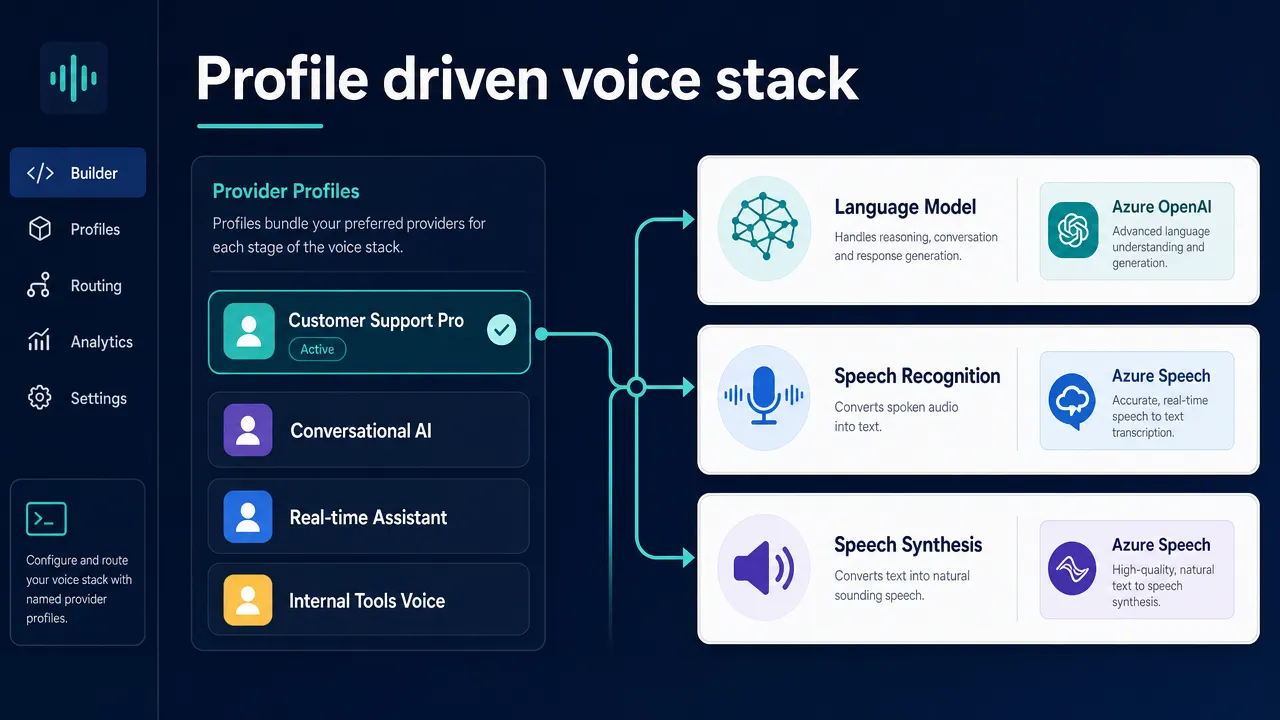
Unified provider profiles

Removing repeated configuration work

Before this update, changing an AI service could mean revisiting credentials, endpoint URLs, model identifiers, and provider-specific parameters across a development setup. That is friction you should not have to absorb every time they want to compare a hosted model with a local deployment or test a different speech pipeline.

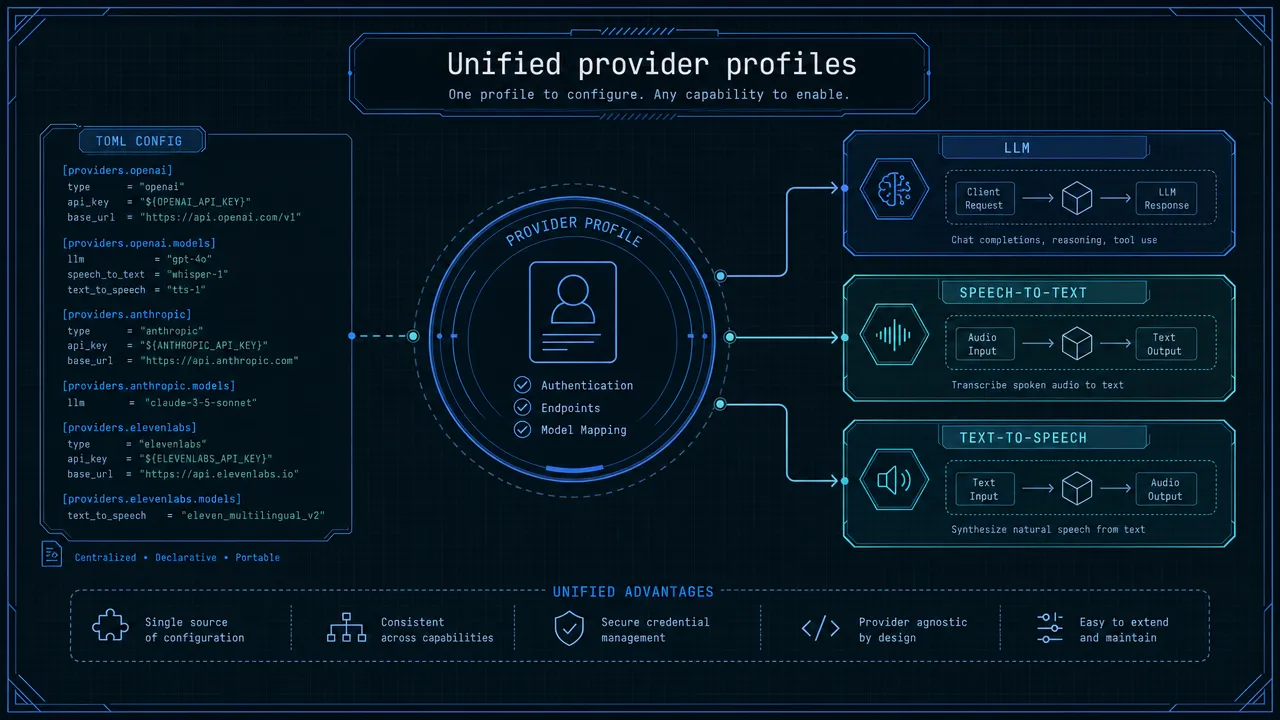
PR #484 focuses on AI model provider management as a shared configuration concern rather than a collection of one-off settings. The intent is simple: save service configurations as named provider profiles, then activate the profile needed for the current test or deployment context.

That matters because Aiden’s operation depends on several connected services:

Service category Role in the Aiden workflow Why a profile matters
LLM Interprets the agent context and helps determine the next action You can compare configured model endpoints without rebuilding the broader setup
STT Converts spoken input into text for voice workflows Voice recognition can be evaluated alongside a chosen model configuration
TTS Produces spoken output from the agent You can test voice quality and behavior without losing track of related settings

Aiden’s Go-based agent runtime uses configured external services, while C++ components support device-side services such as frame capture and audio. TOML remains a practical way to describe configuration, but the important improvement is not the file format. It is having a single provider-management layer that makes configuration intentional, named, and easier to switch.

The result is a cleaner development loop: define a profile once, select it when needed, and keep the values that belong together together.

Connecting LLM, STT, and TTS testing

Aiden’s bring-your-own-provider approach is central to how the project works. You can configure external endpoints rather than relying on an Aiden-hosted backend. That means screenshots, audio, and text are sent to the services you have selected and configured.

With PR #484, the provider-management direction covers the three service categories that shape the agent and voice experience:

  • LLM configuration for screen understanding and agent decisions.
  • STT configuration for spoken requests.
  • TTS configuration for spoken responses.

This is especially useful when you need to evaluate the full interaction chain, not only a single model response. A model choice can affect how the agent reasons about a screen. An STT choice can affect recognition quality in a noisy environment. A TTS choice can change the responsiveness and character of voice feedback. These tests are more meaningful when the related endpoint details are managed as a coherent profile.

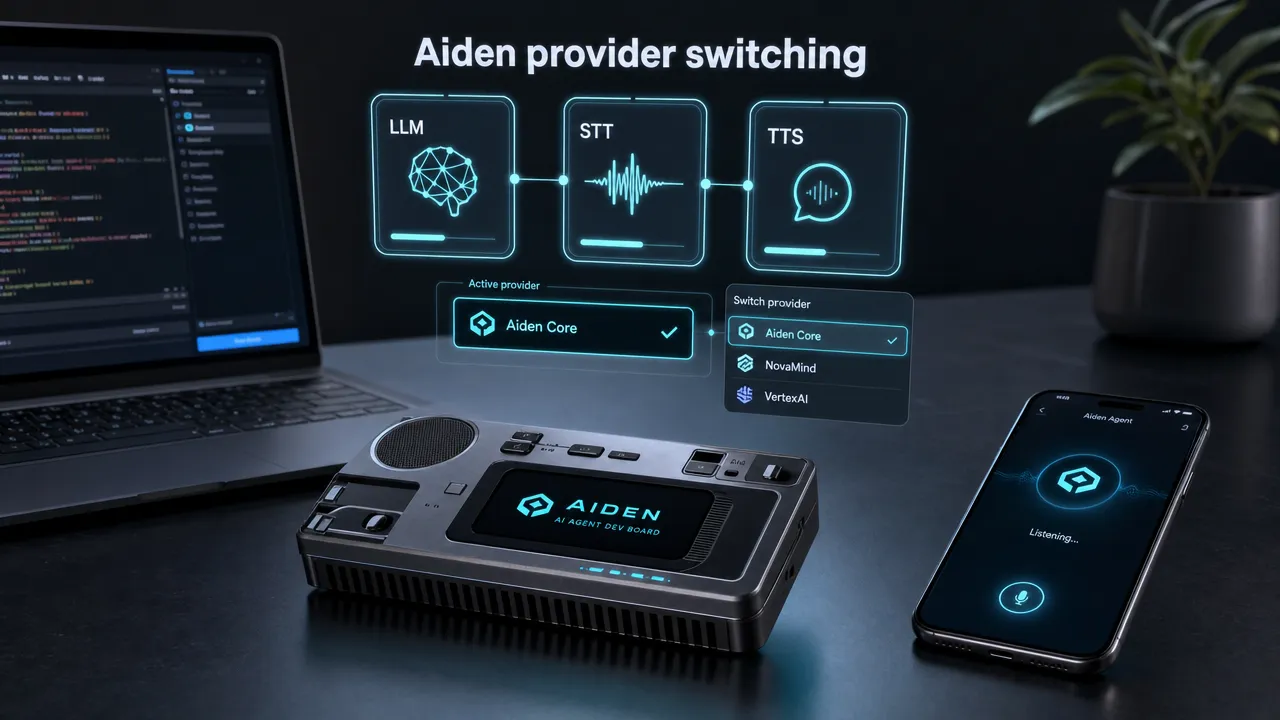
Aiden provider switching

The weekly update also aligns with Aiden’s broader architecture. Aiden captures a target screen through HDMI and controls the connected phone or computer through USB HID input. Its voice flow uses on-device voice activity detection before working with the configured STT, LLM, and TTS endpoints. Provider switching therefore affects a real end-to-end agent workflow, from voice input through reasoning to spoken output and device action.

For teams that run local services, hosted APIs, or custom deployments, centralized AI model provider management creates a clearer boundary between the Aiden runtime and the services chosen for a given test.

Provider profiles in daily development

The value of a profile system is not merely fewer edits. It is a more repeatable way to describe an environment.

You may want one profile for a rapid cloud-based prototype, another for a local model evaluation, and a third for a voice-focused test. With a managed profile workflow, those environments can be given clear names and activated without manually reassembling configuration details each time.

A conceptual profile layout could look like this. The labels below illustrate the intended organization, not source-faithful TOML syntax or a documented command reference.

Profile LLM selection STT selection TTS selection Typical use
cloud-dev Configured cloud multimodal endpoint Configured cloud speech endpoint Configured cloud voice endpoint Fast iteration with remote services
local-lab Local or self-hosted model endpoint Local speech endpoint Local voice endpoint Network-controlled evaluation
voice-test Selected model endpoint Alternate speech-recognition setup Alternate speech-synthesis setup Testing conversational responsiveness

This structure helps avoid a common development problem: changing one endpoint while accidentally retaining a credential, model parameter, or audio setting from a previous experiment.

It also makes configuration easier for you to discuss in issues, testing notes, and pull-request reviews. Instead of describing a loose collection of values, you can describe the profile used to reproduce a behavior. That is a better starting point for consistent testing across the community.

The same discipline helps you when you work with the current Aiden dev board. Aiden is a physical mobile AI agent device that connects through USB, sees the screen through HDMI capture, and controls the target through USB keyboard, pointer, and touch input. When the agent stack is configurable, provider profiles help isolate what changed when a test result changes.

How this fits Aiden’s open architecture

Provider choice is not an add-on for Aiden. It is part of the project’s open architecture.

Aiden does not operate an Aiden-hosted backend for LLM, STT, or TTS services. You configure the endpoints that meet their needs, whether that means OpenAI, Anthropic, a local model, or a custom deployment for the configured model path. This approach supports self-hosted use cases and lets you retain control over where their data is processed.

Centralizing that flexibility is the practical goal behind this week’s work. The AI model provider management update gives the configuration layer more structure without taking provider choice away from you.

Profile driven voice stack

A few important notes for the community:

  • Keep credentials out of shared examples and version-controlled files unless the project explicitly documents a safe approach.
  • Treat profile names as meaningful test context. A descriptive profile is easier to reproduce than an undocumented collection of overrides.
  • Validate each service category independently when changing providers. A working LLM endpoint does not guarantee that STT or TTS settings are ready for the same environment.
  • See PR #484 for the exact configuration keys, switching commands, and migration path.

A faster next step for Aiden builders

This week’s update is about protecting development flow. You can spend less time hunting through configuration values and more time comparing the AI services that shape the agent experience.

That includes testing different model endpoints for screen-aware agent behavior, trying alternate STT services for voice input, and evaluating TTS options for spoken responses. Centralized profiles make those changes easier to organize as the stack evolves.

Aiden remains intentionally configurable: the Go agent runtime, C++ device-side services, and external AI endpoints work together without locking you into one provider. PR #484 strengthens that model by giving provider configuration a shared home.

Explore the Aiden Firmware repository, review the implementation, and share testing feedback with the community. For more project updates, visit the Aiden blog and read the recent open-source toolkit update.

No Unboxing, Just Open Source: Aiden’s Hardware Toolkit

This week, Aiden turned its public repository into a much more practical starting point for builders. The latest updates cover the entire development loop: assembling the board, validating an iOS environment, running speech locally on a PC, debugging from a browser, and making keyboard, text, voice, and screenshot workflows more reliable.

This is not a cosmetic release. It is a coordinated push to make Aiden easier to reproduce, test, develop, and diagnose.

Build Aiden with a real assembly guide

The first major addition is a complete Hardware & Wiring guide for the current Aiden development-board setup.

Instead of forcing builders to reconstruct the prototype from scattered notes, the guide brings the essential hardware information into one place:

  • A development-board parts list.
  • Step-by-step assembly instructions.
  • Wiring diagrams.
  • Checks to complete before powering on the board.

That last item matters. Hardware projects often fail for mundane reasons—an incorrect cable orientation, a missed power requirement, or a connection made in the wrong order. A documented pre-power checklist gives contributors a safer and more repeatable path from a pile of components to a working Aiden setup.

The work is available in PR #451.

Test the iOS workflow without depending only on a physical phone

Aiden now has a standardized testing path for an iOS virtual-phone environment.

PR #446 adds a VPhone environment bridge and the `vphone_ios_basic` benchmark suite. The bridge provides:

  • Environment health checks.
  • Exclusive session control.
  • Screenshot capture.
  • Device-operation interfaces.
  • Startup validation tools.
  • A dedicated client and device-interaction tests.

The update also tightens the platform constraints used by `quick_action` and adjusts the container proxy configuration to reduce interference from the host environment.

Together, these changes give Aiden a repeatable iOS evaluation channel beyond ad hoc testing on a single physical device. Developers can validate core interaction behavior in a controlled environment, reproduce failures more easily, and use the same baseline when comparing changes.

Run Aiden’s TTS experience on a PC

Hardware should not be a prerequisite for testing every part of an agent.

With PR #452, Aiden adds a local text-to-speech playback backend for PC and ADB scenarios. A new `audio.playback_backend` setting lets developers choose between:

  • The board-side `audio_service`.
  • Local playback on the host computer.

In local mode, synthesized speech is written to a temporary WAV file and played through the host system. This makes it possible to test Aiden’s spoken responses while working with a simulator or a PC-based environment, even when the physical audio hardware is unavailable.

It is a small configuration change with a large effect on iteration speed: voice behavior can now be tested much earlier in the development cycle.

Debug the board directly from a browser

PR #453 integrates the WeTTY browser terminal into the Luckfox Buildroot image.

The terminal service is controlled through `ENABLE_WETTY`, and the existing configuration page now includes a Terminal entry. The integration also pins and adjusts dependencies for the project’s Node.js 16 and ARM/uClib target environment.

For developers, this creates a more direct route into a running board. Routine inspection and debugging no longer need to begin with a separate local terminal setup. When the browser configuration interface is reachable, the terminal is close at hand.

Make keyboard input work across more layouts

Physical input automation cannot assume that every keyboard uses the same layout.

PR #450 adds configurable USB HID keyboard layouts for:

  • QWERTY.
  • AZERTY.
  • QWERTZ.

The selected layout is now applied to both keyboard clicks and text entry. This is essential for reliable input outside an English QWERTY environment, where the same HID key position may otherwise produce a different character.

Unify text entry and improve Phone Bridge recovery

Text entry is one of the most failure-prone parts of cross-platform device control, so Aiden has consolidated it behind a single public tool.

PR #458 replaces multiple exposed input paths with `enter_text`. The new flow:

  • Prefers Phone Bridge when it is available.
  • Keeps local HID and IME paths as isolated fallbacks.
  • Adds input-method detection and candidate-word controls.
  • Returns more focused results.
  • Records more useful timing metrics.

The goal is not merely to rename an API. A unified entry point makes behavior easier to reason about and gives the runtime one place to manage platform-specific decisions.

A follow-up fix in PR #462 improves iOS clipboard-based input when the Bridge App has moved into the background. It reuses Phone Bridge’s foreground-restoration capability and removes unnecessary keyboard-search behavior during recovery.

The result is a more stable path back to the target app after a temporary context switch.

Make streaming speech output more tolerant

Aiden’s speech parser now supports both XML-style and bracketed TTS tags:

  • `…`
  • `[tts]…[/tts]`

PR #459 also handles mixed opening and closing styles, capitalization differences, and cases where a tag or UTF-8 text is split across streaming response chunks.

The parsing and streaming logic has been moved into an internal `speech` package and connected across audio conversations, the runtime, server output, and real-time activity streams.

This is the kind of robustness work that is easy to miss in a demo but immediately visible in production: speech output should not break simply because a model streamed a multibyte character or closing tag in a separate chunk.

Inspect screenshots without leaving the file browser

The Agent file browser can now preview common image formats directly in its details drawer.

With PR #466, `screenshot_ref` values in events and logs also become clickable links that open the associated screenshot in the side panel.

That shortens a common debugging loop. Developers can move from an event or log entry to the exact screen state the agent observed without manually locating and opening the image in another tool.

What this release changes for Aiden developers

The week’s updates form one connected developer experience:

StageWhat is now easier
ReproduceFollow a public parts, assembly, wiring, and pre-power guide
TestRun a standardized iOS VPhone bridge and benchmark
DevelopUse local PC TTS and a browser-based terminal
LocalizeSelect QWERTY, AZERTY, or QWERTZ USB HID layouts
InteractUse one `enter_text` path with clearer platform fallbacks
DiagnoseInspect timing data, restore Phone Bridge, and preview screenshots
SpeakParse TTS tags reliably across streamed output

Aiden is still a developer-oriented project, and real hardware and platform combinations still need validation. But the public path is now much clearer: builders can assemble the board from documented hardware information, test important behavior in controlled environments, and diagnose failures with tools that live alongside the runtime.

Explore the Aiden firmware repository, start with the Hardware & Wiring guide, and use the linked pull requests to inspect every implementation detail.

Aiden Open-Source Kit: From Setup to AI Agent

Aiden’s latest open-source updates create a much clearer path from components on a desk to an AI agent that can be tested, heard, controlled, and debugged.

The key improvement is not one isolated feature. It is the way the pieces now fit together. Hardware documentation helps you assemble the development board, a virtual iOS environment provides a repeatable test target, PC audio removes a hardware dependency, and new debugging and input tools make the full interaction loop easier to verify.

This guide walks through that updated path.

Step 1: Assemble the development board

Start with Aiden’s public Hardware & Wiring guide, introduced in PR #451.

Before this update, important prototype knowledge was distributed across the project. The guide now brings together:

  • The required development-board components.
  • Assembly steps.
  • Wiring diagrams.
  • Checks to perform before power-on.

Treat the pre-power section as part of the build, not as optional reading. Confirm component orientation, cable placement, and power connections before starting the board. A few minutes of inspection is cheaper than diagnosing an unstable system later.

At the end of this stage, your goal is simple: a board assembled according to the documented layout and ready for controlled startup.

Step 2: Choose a physical or virtual test target

Aiden’s updated workflow no longer depends exclusively on a physical iOS device for every test.

PR #446 adds an iOS VPhone environment bridge and the `vphone_ios_basic` benchmark suite. The bridge provides health checks, exclusive sessions, screenshots, and device-operation interfaces. It also includes startup validation tooling, a client, and interaction tests.

This gives you two useful testing modes:

ModeBest used for
Physical deviceHardware integration, real connection behavior, and final validation
iOS VPhoneRepeatable interaction tests, benchmark runs, and faster failure reproduction

The VPhone environment is not a replacement for final device testing. It is a stable baseline that helps you answer a more useful question: did a change break the agent, or did the physical environment change?

Run the environment health check first, make sure the session is exclusively held, and verify screenshot and device-operation interfaces before attempting a longer workflow.

Step 3: Test speech without waiting for board audio

Voice output can now be validated from a PC or ADB environment.

PR #452 adds the `audio.playback_backend` setting. It switches playback between the board’s `audio_service` and the host computer.

When local playback is selected, the synthesized result is stored temporarily as a WAV file and sent to the system audio player. This is particularly useful when:

  • You are using a simulator.
  • The physical audio path is not connected yet.
  • You want to debug TTS output separately from board hardware.
  • A contributor is working on the Agent without access to the development kit.

Test the smallest loop first: generate one short spoken response, confirm that the WAV file is produced, and verify that local playback completes before testing a streaming conversation.

Step 4: Open the browser terminal

Once the runtime is running, debugging should not require a complicated path back into the board.

PR #453 adds WeTTY to the Luckfox Buildroot image. Enable it with `ENABLE_WETTY`, then use the Terminal entry in the existing configuration page.

The browser terminal is useful for:

  • Inspecting running services.
  • Reviewing logs during an interaction.
  • Checking configuration changes.
  • Diagnosing failures from a machine that can reach the configuration page.

The integration accounts for the project’s Node.js 16 and ARM/uClib environment, so contributors do not need to reconstruct that compatibility work themselves.

Step 5: Configure the correct keyboard layout

Before judging text-input accuracy, make sure the USB HID layout matches the target environment.

PR #450 adds QWERTY, AZERTY, and QWERTZ layout options and connects the selected mapping to both key clicks and text entry.

Use a short test string that includes letters, punctuation, and symbols whose positions differ across layouts. If the target receives the wrong characters, fix the layout configuration before investigating higher-level Agent behavior.

This separates two very different problems:

  • The Agent selected the wrong text.
  • The correct text was converted into the wrong HID keys.

Step 6: Validate the unified text-entry path

Aiden now exposes `enter_text` as the common text-input tool.

The implementation in PR #458 prefers Phone Bridge and keeps local HID or IME handling as isolated fallbacks. It also introduces input-method detection, candidate-word controls, more focused output, and clearer timing metrics.

A practical validation sequence is:

  1. Enter a short English phrase.
  2. Enter Chinese or another IME-dependent phrase.
  3. Repeat the test after switching apps.
  4. Move the Bridge App into the background and return to the target.
  5. Review the timing metrics and final text rather than relying only on a success message.

PR #462 improves the last two cases by restoring Phone Bridge to the foreground for iOS clipboard input and avoiding unnecessary keyboard-search actions during recovery.

If a test fails, record which path was selected—Phone Bridge, HID, or IME fallback. That context makes the failure reproducible.

Step 7: Test streaming TTS tags

The speech pipeline now accepts two tag formats:

  • `…`
  • `[tts]…[/tts]`

The parser added in PR #459 tolerates mixed tag styles, capitalization differences, tags split across streamed chunks, and UTF-8 text divided between chunks.

Do not test only a complete, perfectly formatted response. Include cases where:

  • The opening tag arrives in multiple chunks.
  • The closing tag uses a different supported style.
  • Chinese or other multibyte text is divided across chunks.
  • Capitalization varies.

Because the shared logic now lives in the internal `speech` package, the same behavior can be used by audio conversations, the runtime, server output, and real-time activity streams.

Step 8: Inspect what the Agent actually saw

When a screen-driven workflow fails, the most important evidence is often the screenshot used for the decision.

PR #466 adds image previews to the Agent file browser. Common image files open directly in the details drawer, while `screenshot_ref` values in events and logs become clickable links.

Use this workflow during debugging:

  1. Open the event or log entry for the failed action.
  2. Follow its `screenshot_ref`.
  3. Inspect the screenshot in the side panel.
  4. Compare the visible state with the action the Agent attempted.
  5. Correlate the result with the input-path and timing data.

This helps distinguish perception failures from input failures. If the screenshot was stale or incomplete, focus on capture and timing. If the screenshot was correct but the resulting text or click was wrong, inspect Agent reasoning and the selected control path.

A practical end-to-end validation checklist

Before calling the setup ready, complete one small workflow from beginning to end:

  • The board matches the Hardware & Wiring guide.
  • Pre-power checks are complete.
  • The physical or VPhone environment passes its health check.
  • Screenshots can be captured and opened from logs.
  • The selected keyboard layout produces the expected characters.
  • `enter_text` works through the intended control path.
  • Phone Bridge can recover after an app switch.
  • TTS plays through either the board or the PC backend.
  • Streamed TTS tags and UTF-8 text are parsed correctly.
  • The browser terminal is available for inspection.

A good first scenario is intentionally small: open a known screen, capture it, enter a short phrase, produce one spoken response, and stop. Once that loop is repeatable, increase complexity one step at a time.

From open-source files to a repeatable development loop

The most valuable part of this Aiden update is continuity. Builders now have a documented way to assemble the hardware, a standardized iOS test environment, a hardware-independent audio option, a browser-based terminal, configurable keyboard layouts, a unified text-entry tool, stronger streamed-speech parsing, and direct screenshot inspection.

That is what turns an open repository into a usable development kit: not just source code, but a path to build, test, observe, and improve the system.

Start with the Aiden firmware repository, follow the Hardware & Wiring guide, and use the linked pull requests when you need the implementation details behind each step.