Mobile AI Agent vs Computer-Use Agent: What’s the Difference?
Short Answer
A mobile AI agent operates in smartphone or tablet environments, where it must work with touch interfaces, compact layouts, mobile permissions and app-specific states. A computer-use agent operates desktop, browser or virtual-computer environments through cursor, keyboard and window-based interaction.
They can share the same core architecture—observe, plan, act and verify—but the environment determines what the agent can see, how it can act and which safety controls it needs.
What Is a Mobile AI Agent?
A mobile AI agent is a goal-directed system built to observe and act in a mobile environment. Depending on its implementation, it may use screenshots, visual reasoning, accessibility information, operating-system services, app actions or external device-control paths. Its actions may include taps, swipes, text entry, app switching and permitted mobile operations.
The defining feature is not simply that the model runs on a phone. It is that the agent can work through a mobile task while tracking state and checking whether its actions succeeded. For the full category definition, see What Is a Mobile AI Agent?.
What Is a Computer-Use Agent?
A computer-use agent is an AI system that operates a desktop, browser or virtual-computer interface. It commonly observes screenshots or structured interface data and acts through cursor movement, clicks, typing, scrolling and other available tools.
The category includes browser-only systems as well as agents that can interact with desktop applications, files or remote environments. Its practical boundary depends on the tools, permissions and execution environment provided to it—not on the model alone. Anthropic’s computer-use documentation illustrates the basic screen-observation and action loop.
Mobile AI Agent vs Computer-Use Agent
| Decision factor | Mobile AI agent | Computer-use agent |
|---|---|---|
| Target environment | Smartphone, tablet, emulator or mobile OS | Desktop, laptop, browser, VM or remote computer |
| Input method | Tap, swipe, long press and mobile text entry | Mouse, keyboard, scroll, drag and shortcuts |
| Screen and layout | Compact screens, responsive app views, overlays and gestures | Larger screens, windows, tabs, dense tools and documents |
| Permissions | App permissions, OS sandboxing, accessibility or device-control access | Browser, file, OS, application, VM or container permissions |
| App model | Sandboxed mobile apps with mobile lifecycle constraints | Websites, desktop apps, files and multitasking environments |
| Touch vs pointer | Touch targets, gestures and virtual keyboards | Cursor precision, keyboard commands and window controls |
| Cross-app behavior | App switching, intents, notifications and mobile context | Tabs, windows, files, clipboard and desktop applications |
| Device prerequisites | Compatible phone or emulator plus an available observation/control path | Compatible computer, browser, VM or remote environment plus tools |
| Safety constraints | Messages, location, contacts, sensors, payments and device settings | Email, files, credentials, business systems and destructive desktop actions |
| Testing challenges | Device and OS variation, gestures, app state and mobile permissions | Resolution, browser and OS variation, window state, files and pop-ups |
The useful question is therefore not which category is more capable in general. It is which environment contains the task and whether the agent has a reliable, authorized way to observe and act there.
Where They Overlap
Both categories usually depend on the same broad control loop:
- Screenshot or interface perception: determine what is currently visible.
- Planning: choose the next action that advances the user’s goal.
- UI grounding: connect an intended action to the correct control or location.
- Action: send an allowed input through the environment’s control layer.
- Verification: observe the result instead of assuming the action worked.
- Recovery: retry, re-plan, ask for help or stop when the state is uncertain.
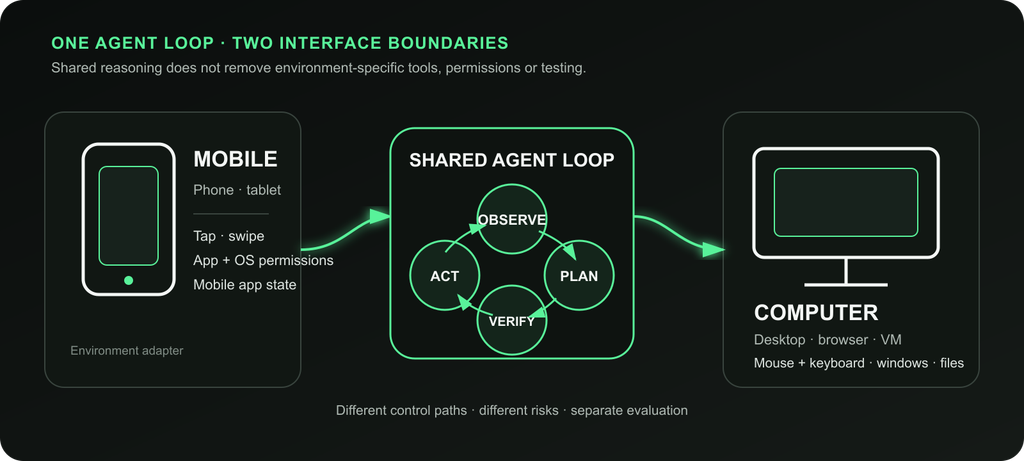
This shared loop explains why similar models can participate in both systems. It does not make the environments interchangeable. Each side still needs its own adapters, permissions, evaluation tasks and failure handling.
Where Mobile Agents Are Different
Mobile agents work inside an environment designed around touch, foreground app state and strict application boundaries. Important controls may appear as bottom sheets, transient permission prompts, virtual keyboards, notifications or gestures rather than persistent windows and menus.
They also face more device-specific variation. Screen dimensions, OS versions, manufacturer changes, accessibility settings and app releases can alter the same workflow. Mobile tasks may depend on context such as notifications, camera input, location or device state, but those signals require explicit access and careful handling.
This is why mobile evaluation must cover the actual devices, operating systems, app versions and task states that matter. The AndroidWorld benchmark is one example of evaluating agents on tasks across Android apps, but benchmark performance is not proof of reliability on every device or application.
Where Desktop Computer-Use Agents Are Different
Desktop environments generally offer larger workspaces, multiple windows, browser tabs, files, menus and keyboard-heavy applications. A computer-use agent may need to move between a browser, spreadsheet, document, terminal and local file system during one task.
That flexibility creates different failure modes. Focus can move to the wrong window, a file picker can interrupt the sequence, downloaded content can be untrusted, or a background application can change state. A browser-only agent is narrower than a desktop-level agent because its action boundary normally ends at the browser session.
Desktop systems are often easier to isolate inside a VM, container or remote workspace, but isolation does not remove the need for least-privilege access, action logging and confirmation before consequential changes.
Can One Agent Do Both?
Yes, one agent architecture can support both mobile and computer-use environments if it has separate, compatible observation and action adapters.
For example, the same planning runtime could receive a screenshot from either environment and decide what to do next. The action layer would still need to translate that decision into a tap or swipe for mobile, or a cursor and keyboard action for desktop. Permissions, available tools, coordinate systems, interface conventions and evaluation suites would also remain environment-specific.
So “one agent” does not mean one universal controller. It means a shared reasoning and task layer connected to different environment bridges. Every supported environment still has to be tested on its own terms.
For workflows that cross a web browser and a connected device, see Browser Agent vs Device Agent.
How Aiden Fits
Aiden is a device-use implementation rather than a definition of either category. Its current documented reference architecture can observe a connected target through an HDMI capture path and send keyboard, pointer or touch-style input through USB HID. The Aiden runtime can also connect to supported simulated, ADB or virtual environments through environment bridges.
That architecture can target mobile or computer interfaces when the required hardware, operating-system settings and control path are available. It should not be interpreted as universal compatibility, a guarantee that every task will complete, or evidence that one control method fits every device.
The Aiden Agent documentation describes the current runtime and tools. For the device-level implementation, see What Is an AI Agent Device?.
Regardless of environment, sensitive actions should remain interruptible and reviewable. The practical control model is covered in Human-in-the-Loop AI Agents.
Frequently Asked Questions
Is a mobile AI agent a type of computer-use agent?
It can be considered part of the broader family of agents that operate graphical interfaces, but “mobile AI agent” is the more precise category when the target environment is a smartphone or tablet. Mobile interfaces have distinct inputs, permissions, layouts and device constraints.
Can a computer-use agent control a phone?
Only if it is connected to a phone-compatible observation and control path. A desktop-oriented model or runtime does not gain reliable phone control automatically. It needs mobile-specific tools, permissions and testing.
Can the same AI model power both types of agent?
Potentially, yes. A model capable of visual reasoning and tool use may support both, but each environment still needs its own tools, system instructions, safety rules and evaluations.
Which type is better for cross-app automation?
It depends on where the apps run. Mobile agents are suited to workflows spanning mobile apps and device context. Computer-use agents are suited to workflows spanning browser tabs, desktop applications and files. Cross-device workflows may require both.
Which type is safer?
Neither category is inherently safer. Risk depends on permissions, isolation, data access, action limits, verification and human approval. High-impact actions should require stronger controls in either environment.
Related posts
Why CrewAI beats LangChain for multi-agent work
CrewAI vs LangChain compared by workflow shape, showing when role-based agents beat graph orchestration for multi-agent systems.
LangGraph vs AutoGen: Which AI Agent Framework Handles Complex Workflows in 2026?
LangGraph vs AutoGen comparison: assess state, checkpoints, human review, and collaboration to choose the right AI agent framework

Claude vs GPT-5 for Business Automation
Business automation AI comparison of Claude vs GPT-5 using workflow fit, governance, tools, and agent evaluation criteria for ROI.