What Is a GUI Agent? How AI Reads and Acts on Interfaces.
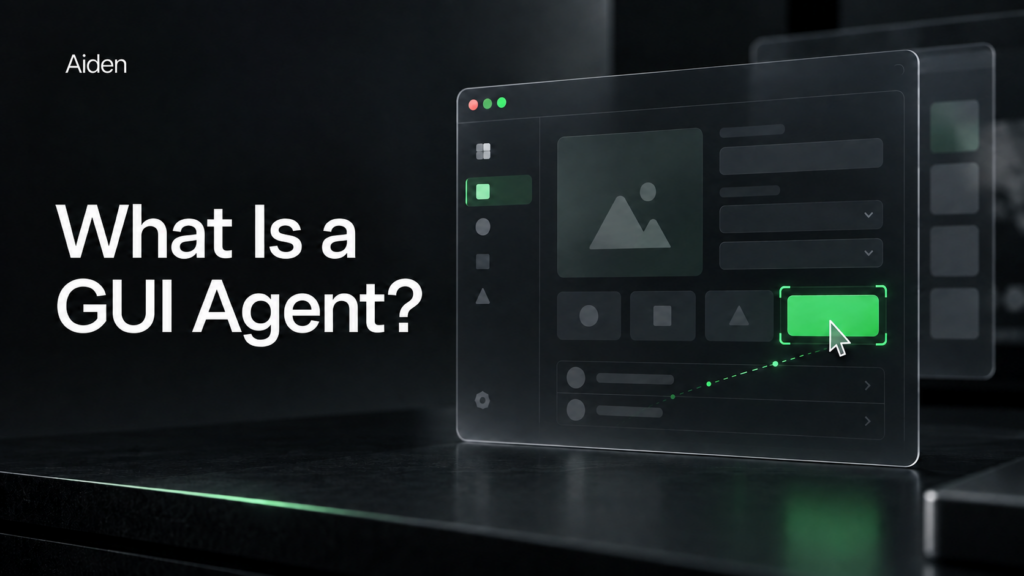
A GUI agent is an AI system that interprets a graphical interface, connects a user’s goal to a specific control, performs an action, and checks the resulting state. It can work from screenshots, structured interface information, or both. Unlike a model that only describes a screen, a graphical user interface agent needs a way to execute operations such as clicking, typing, or tapping. It also needs evidence that those operations produced the intended result. The essential mechanism is a feedback loop: observe the interface, understand the task, ground the next action, execute it, and verify what changed.
How a GUI agent turns a user goal into interface actions
A graphical user interface is the collection of windows, menus, buttons, fields, and other visual controls through which people interact with software. A GUI agent connects those controls to a requested outcome.
That requires more than visual recognition. Recognizing a button, selecting the correct button, activating it, and completing the task are separate achievements.
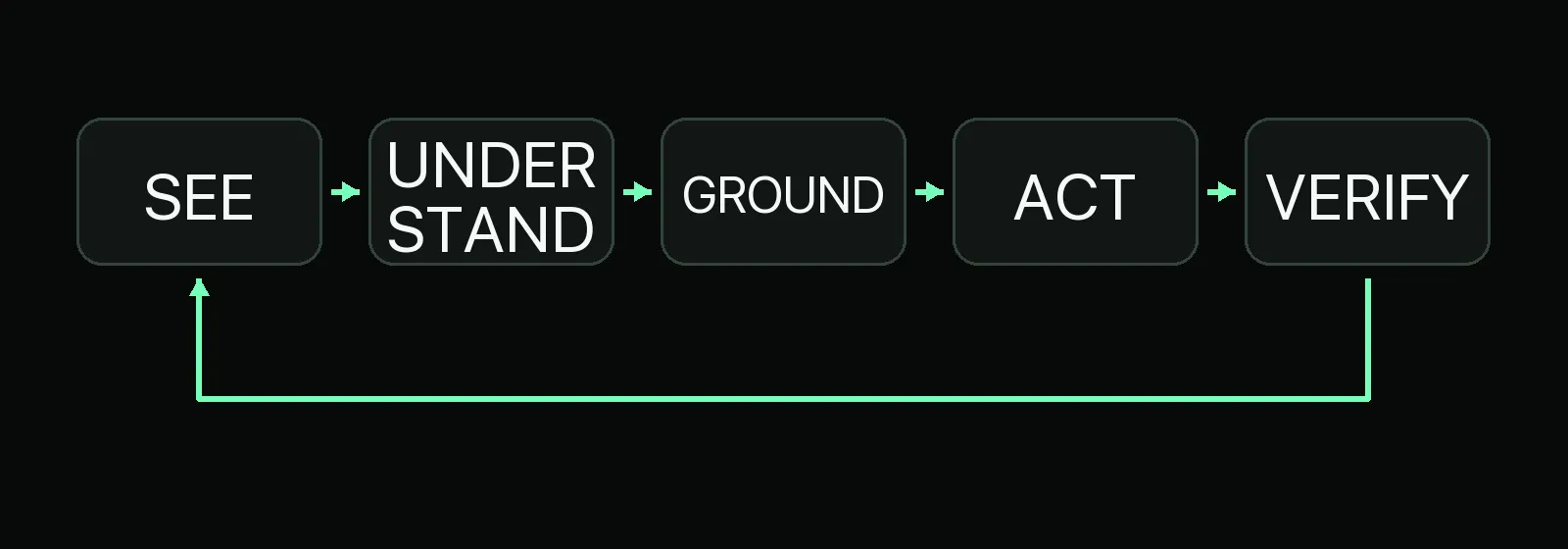
The ACL research survey describes GUI-agent capabilities across perception, reasoning, planning, and action. A useful practical abstraction is:
SEE → UNDERSTAND → GROUND → ACT → VERIFY
The seven steps behind the loop
Consider a low-risk task: "Open the formatting menu in this test document."
- Observe: Obtain current evidence from the correct application window.
- Interpret: Identify the document, toolbar, menus, and any blocking dialog.
- Ground: Connect "formatting menu" to the relevant control, not the browser’s menu.
- Choose: Decide whether to click, use a shortcut, wait, or ask for clarification.
- Execute: Send the operation through an available control tool.
- Observe again: Inspect the interface after the action.
- Evaluate: Continue if the expected menu appeared, recover if appropriate, or stop when evidence is insufficient.
These functions do not need to be separate models or rigid software modules. Some implementations combine them. What matters is maintaining the connection between the user’s intent, current evidence, and the next permitted action.
A vision model might describe the toolbar accurately without knowing which menu the user needs. A grounding model might locate a requested control without knowing whether activating it is appropriate. Generating coordinates alone does not establish either task understanding or completion.
This is the practical meaning of "AI reads and acts on interfaces": interpretation must connect to executable actions and observable outcomes.
What a GUI agent sees, grounds, and controls
An AI GUI agent does not necessarily operate from screenshots alone. Its observation and execution tools depend on the environment, permissions, and implementation.
Screenshots and structured interface information
Different representations expose different kinds of evidence.
| Representation | Useful information | Important limitation |
|---|---|---|
| Screenshots and pixels | Layout, icons, spatial relationships, visible feedback | Hidden state and control meaning may remain unclear |
| OCR text | Text extracted from images, sometimes with positions | Reading order and recognition can be wrong |
| Accessibility trees | Exposed names, roles, states, and hierarchy | Custom controls may expose incomplete information |
| DOM data | Browser elements, attributes, text, and relationships | An element’s existence does not establish visibility or readiness |
| Available application state | Authorized values or state exposed through tools | Access is implementation-specific |
| Combined observations | Visual context alongside structured targeting | Conflicting evidence still needs resolution |
A multimodal GUI agent may combine visual interpretation with textual or structured information. Neither representation automatically overrides the other.
For example, a browser element may exist in the DOM while being covered by a dialog. Conversely, a visible custom control may expose little useful accessibility information.
A screen-based AI agent may therefore need more than an image to establish success, even when screenshots provide its main observation channel.
UI grounding: Finding the right control
UI grounding connects an intended interaction to a specific target in the current interface.
Suppose two document rows each have an "Edit" button. The instruction is to edit the test note named "Packing list." Matching the word "Edit" is insufficient. The agent must associate the button with the correct row.
Grounding can use:
- Visible labels and nearby text.
- Position within a window, panel, or dialog.
- Bounding boxes and coordinates.
- Accessibility names, roles, and element references.
- DOM nodes or locators.
- Semantic context linking a control to the requested item.
The SeeClick grounding paper treats locating interface targets as a distinct capability. For structured browser interaction, Playwright’s locator documentation shows how roles, labels, and other attributes can identify elements.
Both approaches have limits. A coordinate can point precisely to the wrong button. A selector can reliably identify an element that does not match the user’s intention.
Coordinates also need the correct scale and origin. A screenshot resized for a model is not necessarily in the same coordinate system as the display receiving input.
How actions reach the application
The model typically selects an operation; a tool performs it.
Possible control paths include mouse and keyboard input, taps and swipes, accessibility actions, browser automation, and operating-system tools. Some systems use USB HID, which presents supported input-device behavior to a host. Others use authorized Android Debug Bridge access in suitable Android environments.
These are alternative implementation routes, not capabilities shared by every agent. Aiden’s control-route comparison covers the device-level distinctions separately.
Application APIs can also participate in a hybrid workflow. Retrieving structured data through an API and inspecting its rendered presentation through a GUI can be more appropriate than forcing every step through clicks.
An input channel is not an observation channel. Sending a keystroke does not establish where it landed or whether the application accepted it.
How a GUI agent compares with other automation approaches
UI interaction automation includes more than model-driven agents. Conventional tools can already use selectors, accessibility information, OCR, image matching, retries, and assertions.
The difference is not simply "scripts cannot see, but AI can." It is how the system chooses actions and handles variation.
GUI agents versus traditional automation
Here, traditional automation means predominantly predefined procedures, conditions, and checks.
| Decision area | Traditional automation | GUI agent |
|---|---|---|
| Rule type | Explicit procedures and branches | Goal-conditioned decisions within constraints |
| Interface variation | Handles configured or anticipated changes | May interpret unfamiliar changes |
| Perception | Can use structured data, OCR, and images | May combine these with model interpretation |
| Adaptation | Usually encoded or configured | Can propose new steps, sometimes incorrectly |
| Action selection | Predetermined sequence or branching | Selected from intent and current evidence |
| Recovery | Exception handlers, retries, fallbacks | Re-observation, replanning, or escalation |
| Verification | Explicit assertions and outcome checks | Needs equally explicit success criteria |
| Setup | Workflow design and environment configuration | Tools, permissions, policies, and evaluations |
| Reliability | Often predictable in stable, tested workflows | Depends on task, model, tools, and controls |
| Best fit | Repetitive, well-defined operations | Bounded tasks requiring interface interpretation |
AI interface automation changes the decision layer; it does not remove engineering work. AI UI automation still needs permissions, stopping conditions, suitable test environments, and evidence of completion.
Computer-use, browser, and mobile agents
These labels overlap rather than forming a universally agreed hierarchy.
A computer use agent, also written as computer-use agent, operates within a computer environment. It often uses GUI techniques but may also use terminals, APIs, or other tools. Aiden’s environment comparison discusses the mobile and computer distinction.
A browser agent works primarily within browser environments. It may use screenshots, DOM tools, or combinations. The browser-versus-device comparison explains why browser scope differs from device scope.
A mobile AI agent is defined by its smartphone or tablet environment. It may use GUI techniques while also handling gestures, permissions, keyboards, app lifecycle changes, and device conditions. Those constraints belong in the smartphone-focused guide.
GUI agent primarily describes the graphical interaction mechanism. The other labels often describe where an agent operates.
Suitable tasks and concrete examples
Potential uses include desktop workflows, browser tasks, mobile interaction, UI testing, form entry, legacy software, cross-application work, and visual checks. Suitability depends on access and verifiable outcomes.
The following are hypothetical test scenarios, not Aiden capability claims:
| Scenario | Intended action | Verification and boundary |
|---|---|---|
| Desktop test document | Rename one disposable file | Check the exact filename and folder; stop at overwrite prompts |
| Local browser form | Fill non-sensitive test values | Read back each field; do not submit |
| Test notes application | Search for and open a note | Match its title and expected content; stop at authentication |
| Cross-application draft | Copy test data into a local document | Compare source and destination before further action |
Legacy software without useful APIs can also be a candidate, provided the workflow remains observable and controlled. The interface-access guide covers that feasibility question in more depth.
Why a GUI agent needs verification and stopping rules
An action being issued is not the same as a task being completed.
A click tool can return successfully even though a dialog intercepted the click. Text can be entered into the wrong field. A document can look updated without its changes being saved.
Where failures arise
Visual ambiguity can make several controls look equally plausible. Layout changes, scrolling, and orientation changes can invalidate earlier coordinates. Pop-ups can cover the intended target, while loading states can make an unfinished transition appear complete.
Focus is another common boundary. Before typing, the system needs evidence that the intended field or window will receive the input. After typing, reading back the value can catch focus errors and unexpected substitutions.
Hidden state presents a different problem. A screenshot may show a success notification without establishing durable storage. Authentication and permissions can also interrupt the workflow, requiring user participation rather than another automated attempt.
Long tasks compound these problems. Several locally plausible actions can gradually depart from the original goal. Checkpoints, bounded retries, and explicit stop conditions help contain that drift.
Verify the outcome, not just the command
Useful verification distinguishes four levels:
- Tool acceptance: The executor accepted the command.
- Visible transition: The expected screen change appeared.
- Task postcondition: The resulting state satisfies the user’s requirement.
- Durable outcome: Where accessible and relevant, an authorized state check confirms persistence.
Not every implementation can inspect all four. The system should report the evidence it actually obtained.
The OSWorld research paper uses task-specific execution-based evaluation. The AndroidWorld paper describes success checks using device state. These illustrate stronger evaluation than simply asking an agent whether it finished, without implying that every deployed agent has equivalent access.
After each meaningful action, the practical pattern is:
Observe > Act > Observe again > Confirm, recover, or stop
When a save operation appears stalled, repeated clicking is not necessarily a safe recovery. The first operation may already have completed. Inspect the current state before retrying.
Preserve human control and instruction boundaries
Interface content is evidence, not automatic authorization. Text inside a webpage, message, or document should not be allowed to redefine the user’s task or grant new permissions.
For consequential actions, meaningful confirmation should identify the target, destination, data involved, and likely consequence. Asking "Continue?" without that context provides little basis for informed control.
Authentication, unexpected permission requests, ambiguous targets, and potentially irreversible actions are reasons to pause. The human-control guide explores interruption and participation in greater depth.
Evaluate complete workflows
Builders should define success before running the test, then evaluate more than target localization.
Record the environment, permissions, resolution, model and tool versions, initial state, actions, and observed results. Test delays, overlays, repeated labels, focus changes, and layout variation.
Track interventions and recovery alongside completed tasks. Repeat trials and compare with deterministic or hybrid alternatives. A successful demonstration is useful evidence of possibility, not a reliability estimate.
When GUI automation is the wrong choice
A stable, authorized API is usually the better starting point when it can express both the operation and its result directly.
High-volume structured processing rarely benefits from unnecessary screen navigation. Tight latency requirements also warrant testing structured or deterministic routes first, because repeated observation and inference add work.
A stable UI procedure may need only conventional automation with good locators, waits, and assertions. A mixed workflow may benefit from APIs for data handling and GUI interaction for visual review.
Highly sensitive workflows without adequate permissions, confirmation, or verification should remain human-led or be redesigned. A GUI agent does not supply missing governance.
How Aiden applies GUI agent principles to real devices
Aiden is an AI-agent hardware and software technology company building physical AI agents for human-directed interaction with smartphone and computer interfaces. It is not merely a mobile app or chatbot.
Its public development-board materials describe separate observation and input paths. The documented display-capture path supplies visual evidence through HDMI capture, while USB HID provides an input route.
That makes Aiden a useful example of the GUI-agent engineering problem: connect interface observation to agent reasoning, execute device input, and inspect fresh evidence afterward. A fresh frame can support verification, but does not by itself prove every task’s success.
The device-system explanation distinguishes hardware, runtime, and host boundaries. These development-board descriptions should not be interpreted as finished retail availability or universal compatibility.
Aiden is being developed for Android and iPhone workflows. User control, interruption, redirection, and confirmation remain important product principles. Model behavior, inference location, supported environments, and cancellation semantics must be assessed from the relevant implementation rather than inferred from the presence of physical hardware.
Explore Aiden’s technical documentation for implementation details.
Explore, follow, and star the Aiden firmware repository. Reproducible bug reports, compatibility findings, documentation gaps, feature requests, and technical proposals make useful GitHub Issues.
GUI agent FAQ
What is a GUI agent?
A GUI agent interprets a graphical interface, connects a user’s goal to an actionable target, performs an operation through a control tool, and checks the resulting state.
How does a GUI agent work?
It observes, interprets, grounds, acts, and verifies. Fresh evidence determines whether it should continue, recover, request human help, or stop.
Is a GUI agent the same as a computer-use agent?
Not exactly. GUI agent emphasizes graphical interaction. Computer-use agent describes a broader execution category that may also involve terminals, APIs, and other tools.
Can a GUI agent control desktop applications?
Some implementations can use mouse, keyboard, or platform tools to operate desktop applications. Access and success depend on the application, permissions, environment, and available controls.
Can a GUI agent use mobile apps?
Some implementations support mobile interaction. Gestures, authentication, permissions, app state, and device conditions remain constraints. Mobile support does not imply compatibility with every app.
Do GUI agents need screenshots?
Not necessarily. They may use accessibility trees, DOM data, or other structured interface information, sometimes combined with screenshots.
Do GUI agents need APIs?
They do not necessarily require an application-specific API. They still need an authorized control mechanism, and hybrid workflows can use APIs where appropriate.
How do GUI agents know where to click?
They ground the intended interaction using labels, context, bounding boxes, coordinates, or structured element references. The target must match both the task and the current interface.
Are GUI agents reliable?
Reliability depends on the implementation and task. Evaluate repeated end-to-end outcomes, recovery, interventions, and stop behavior rather than relying on a successful click or demonstration.
What is UI grounding?
UI grounding connects an intended interaction to a specific current control, such as the correct button or field. It does not, by itself, establish task completion.
Related posts
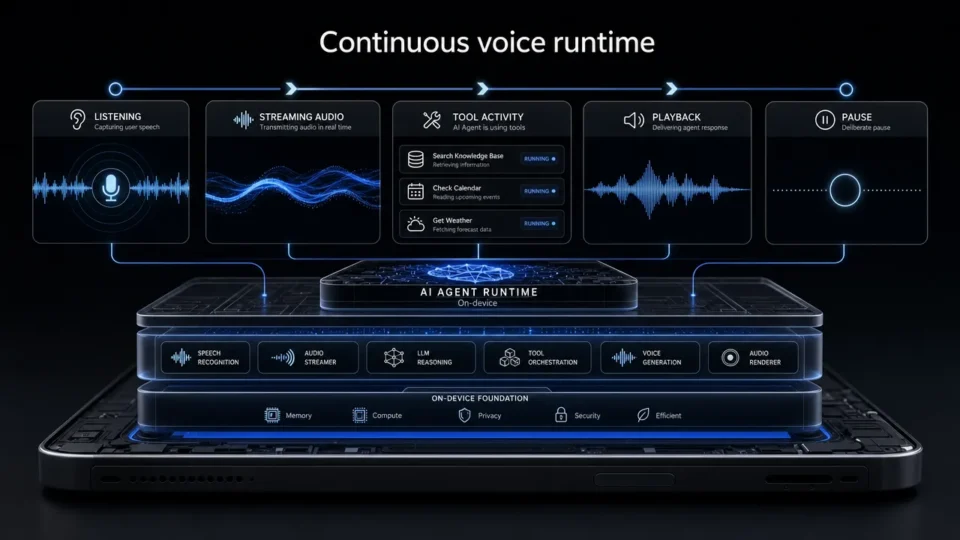
Aiden Adds Full-Duplex Voice and Interruptible Agent Tasks
Explore how Aiden’s full-duplex AI agent runtime supports streaming voice, tool interruption, and pause/resume task control states.
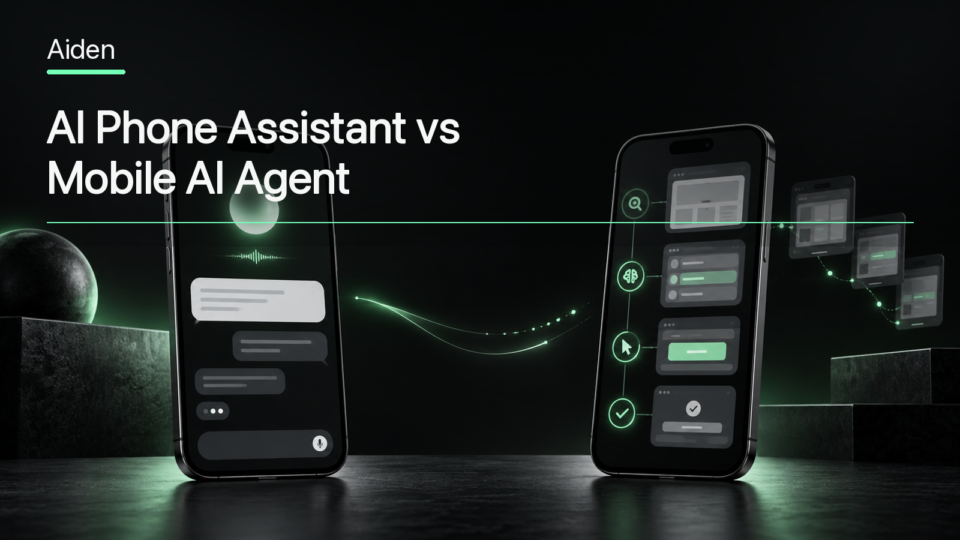
AI Phone Assistant vs Mobile AI Agent: What’s the Difference?
AI phone assistant vs mobile AI agent: compare planning, device control, human oversight, and multi-step task execution across real-device workflows.
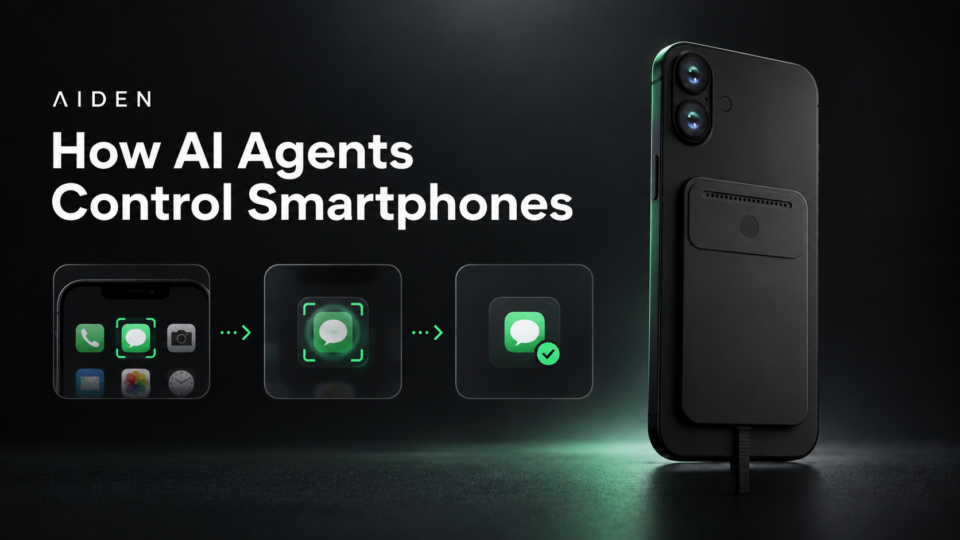
How AI Agents Control Smartphones
Learn how AI agents control smartphones using observe-act-verify loops, authorized inputs, and human oversight to verify task outcomes.